Creating Impeachment Designation Lists
There are a few methods people use for impeachment designations:
The Wing-it Method. Find the page/lines on the transcript viewer, select the text on transcript, and then Publish or Publish as Text only (See Presenting Impeachment Designations On-the-fly article).
Create an impeachment list and use the Automatic Advance arrows to separate the clips.
Separate List Method - Creating separate lists for each impeachment clip. This can be done individually, or you can take a designation list and split it on the Auto-Advance Arrows (see Split Designation List article).
This article explains the second method more in depth. You should have already reviewed the Creating Designation Lists and Designation List – Parts Explained articles.
Creating an Impeachment List
Select your impeachment list. All designations are set to play consecutively as you can see by the arrows pointing down. This is the default for all designation lists.
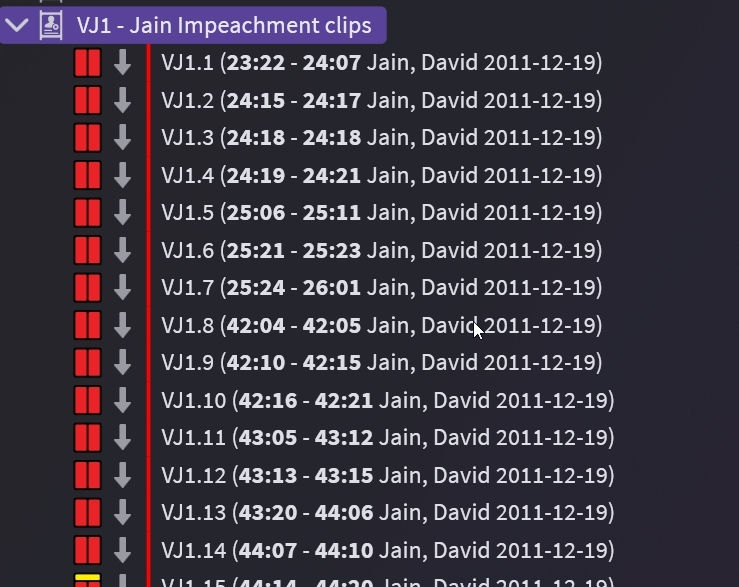
Right-click on the list and select Automatic Advance – click on Enable Auto-Advance to remove the checkmark.

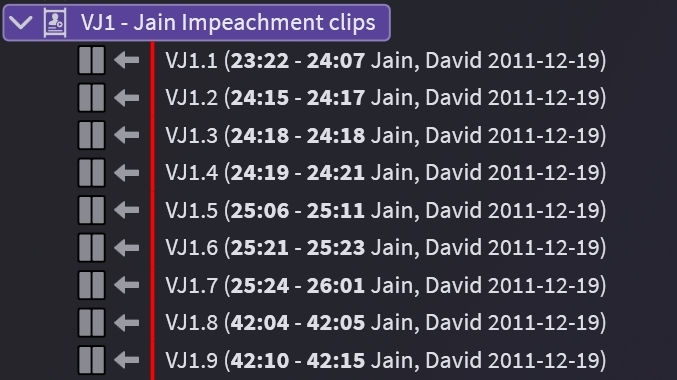
Unchecking Enable Auto-Advance changes the Auto-Advance Arrows in the list to point left. Pointing left means the designation will play and stop after it plays.
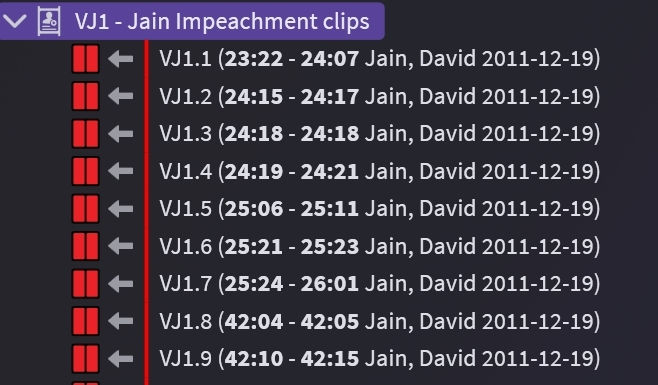
After fine-tuning (see Basic Fine-Tuning Designations and Advanced Fine-Tuning Designations articles) your designations are ready to go. When you publish a designation, it will only play that designation and not continue playing.
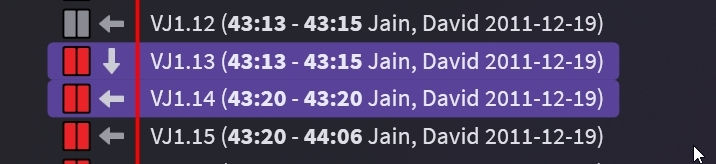
Have impeachment clips with more than one designation? No problem. You can double-click on the Auto Advance Arrow to change whether it advances or stops. In the image below, publishing VJ1.13 will also play VJ1.14. Playback will stop after VJ1.14 plays.