Deposition Designation Reports
Designation List Reports
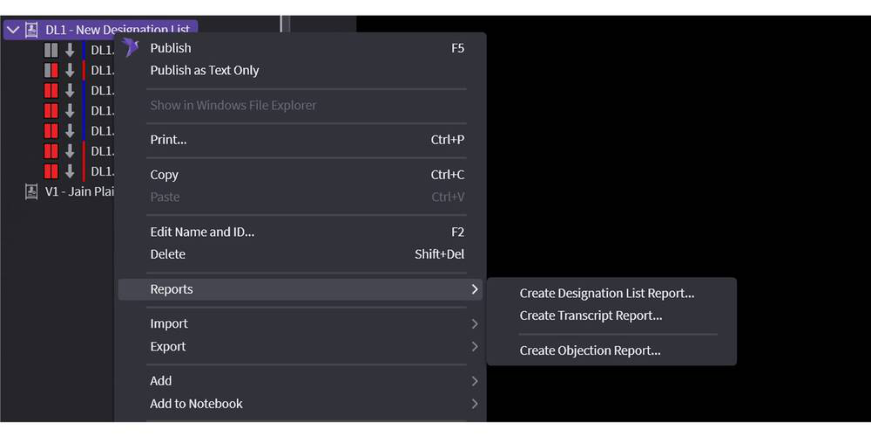
Right-click on a Designation List and select Reports.
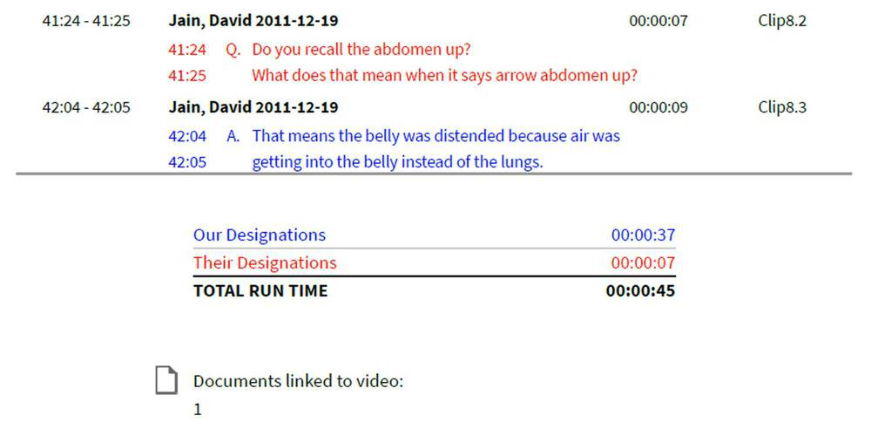
Designation List Reports show only the designated portions of the transcript, including text and time totals. The text of the designation is the highlighter color you have chosen.
Transcript Reports
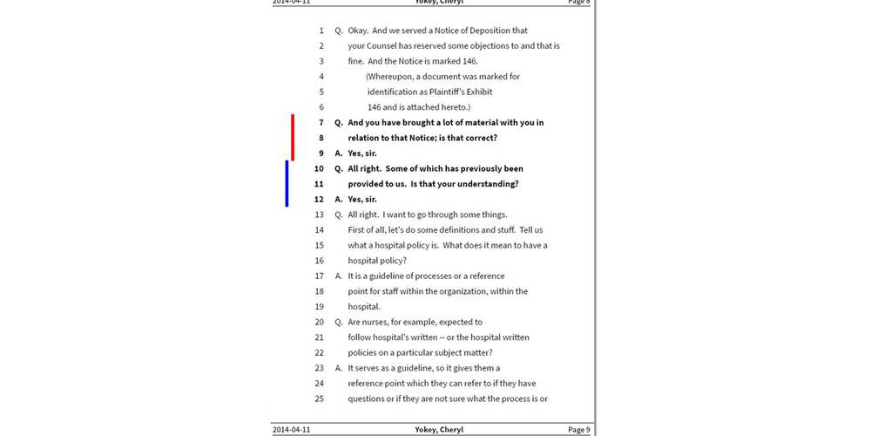
Transcripts Reports show the full transcript, but they have vertical color-coded bars next to the designations that are in the list you have chosen to print. There is also an option to highlight the text of the transcript in the appropriate color, although only one color can be on the text at a time.
The vertical bars on these reports showing the various highlighter colors really come in handy and are a great visual indicator if designations overlap.
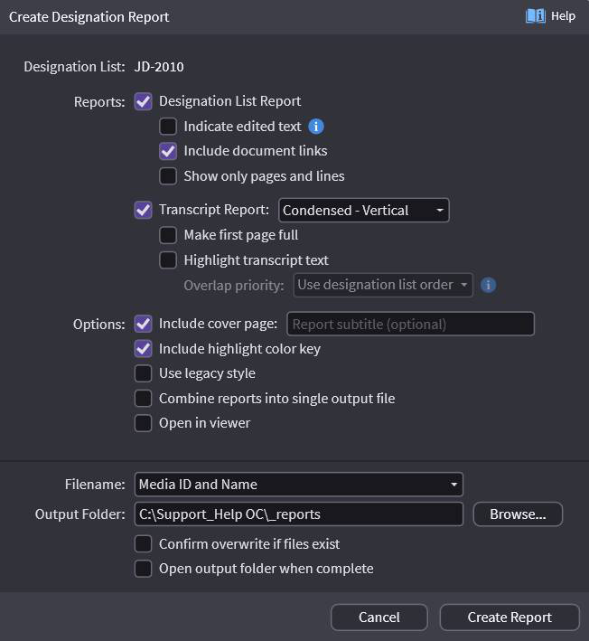
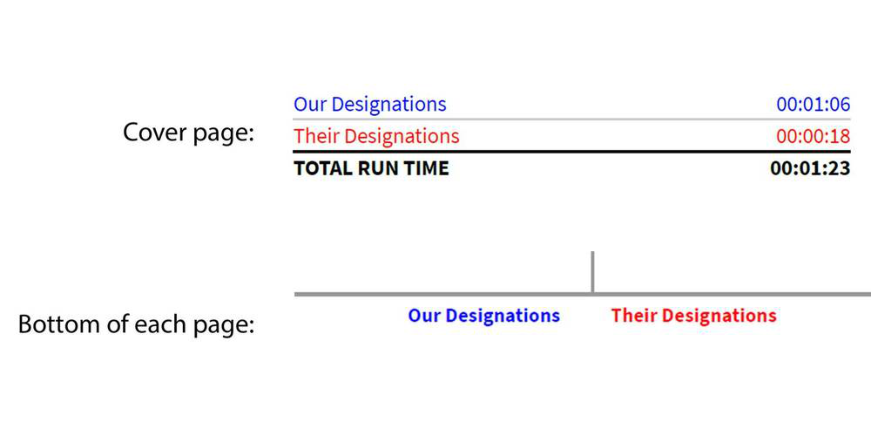
Designation List and Transcript reports contain a cover page with a highlighter key to help people decipher the colors. It is can also be added to each page at the bottom. You can also add a subtitle on a report if you need to.
No Sync - No problem – you can still create reports
If you don’t care about time estimates and want the reports, OnCue can take a plain text file or Ascii (*.txt) file and a MS Word *.docx file as detailed below.