Designation Objection Reports
You can create objection reports in Excel format using your existing designations and a text file. The report can be formatted with multiple columns and customized headers.
The text file must be tab-delimited with no headers. You create and keep the files outside of OnCue. OnCue does not save or store these objections.
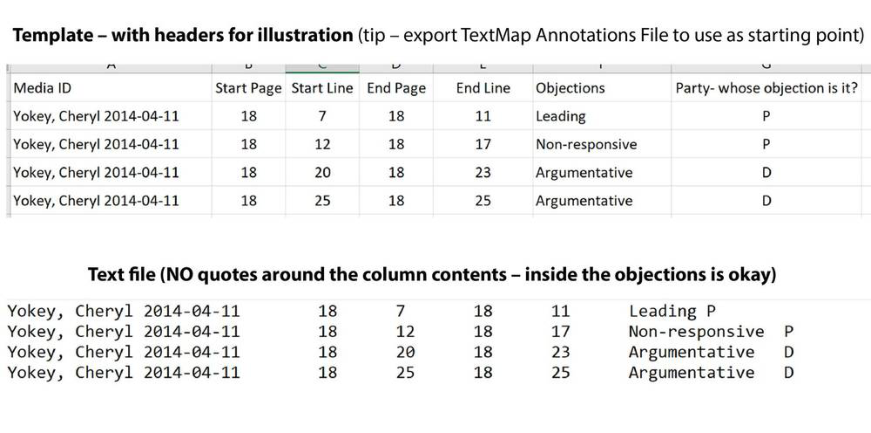
Transcript Media ID - this is the transcript you created the designations with
Start Page
Start Line
End Page
End Line
Objections
the initial of the party who is doing the objecting
If you run into issues, check this list below:
1 No headers
2 No extra spacing in columns 1-5 and 7.
3 No bizarre formatting – no “em dash”, no odd symbols in the objection column
4 You must have all 4 page/line columns filled even if you are objecting to one line
5 You must have a designation for an objection to appear in report
Creation of Report
Right-click on your designation list, select Reports -> Create Objection Report.
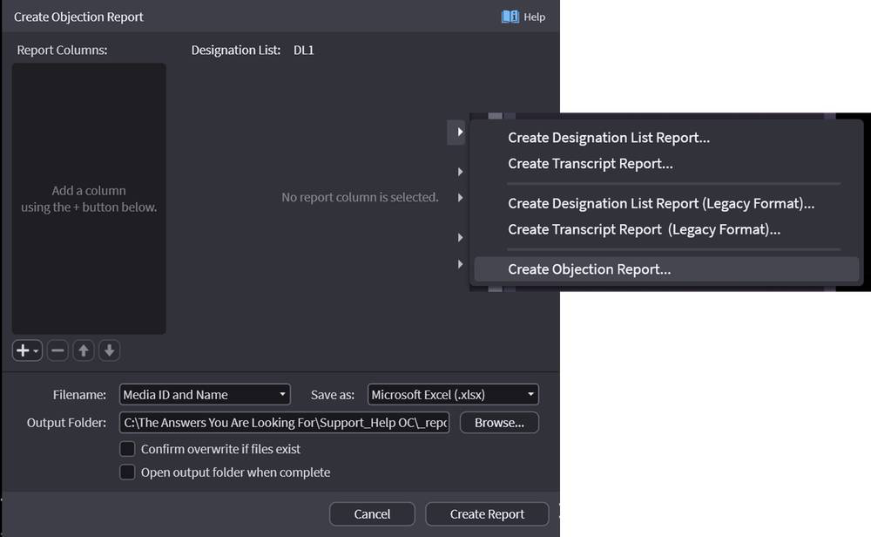
Select your columns under options. Designations first.
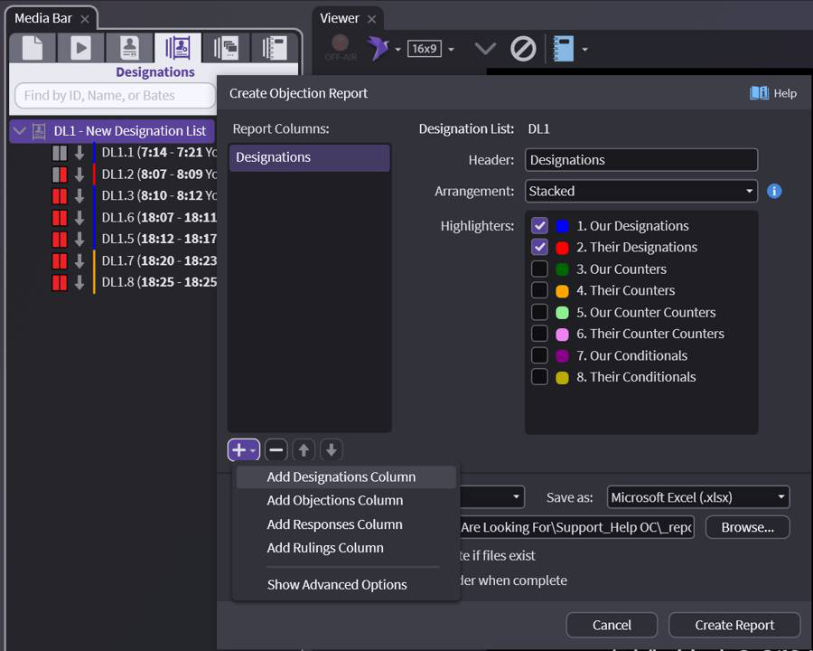
Now add an Objections Column and Browse the Objection Text file you already have created. You can change the objection text color.
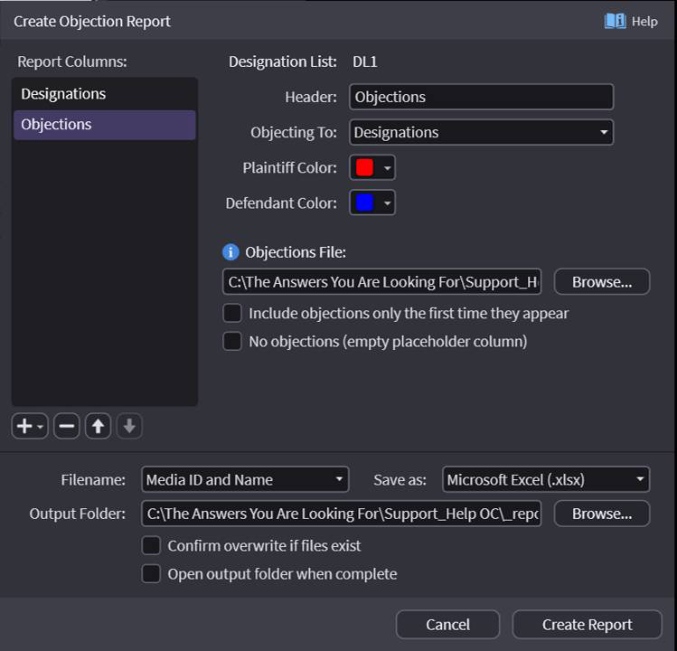
Now you can add other columns or remove them. If there is no data, be sure to check (empty placeholder column).
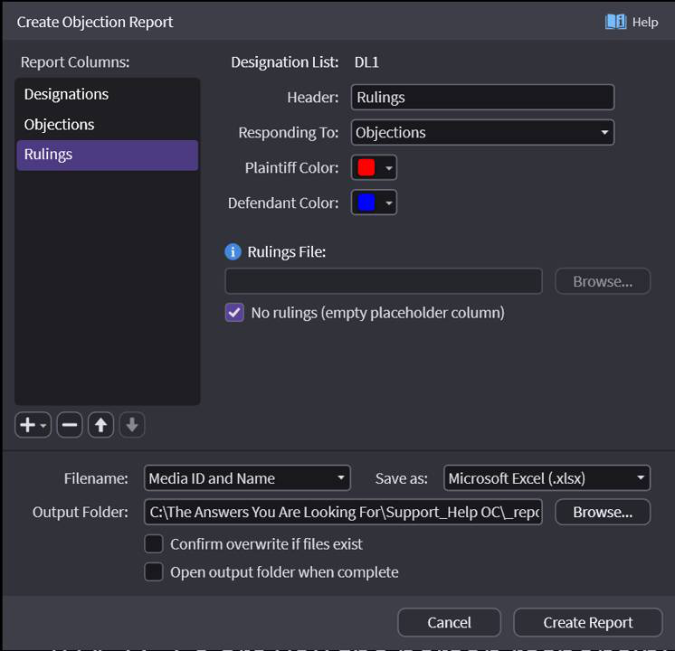
Create your report.
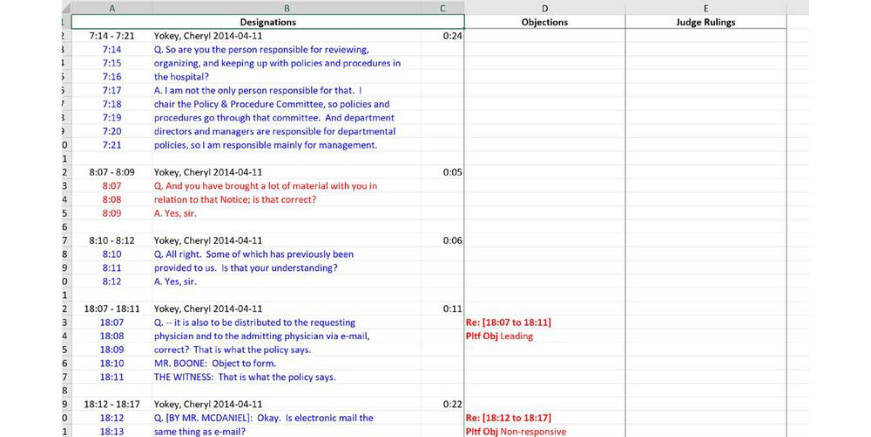
Arrangement Options:
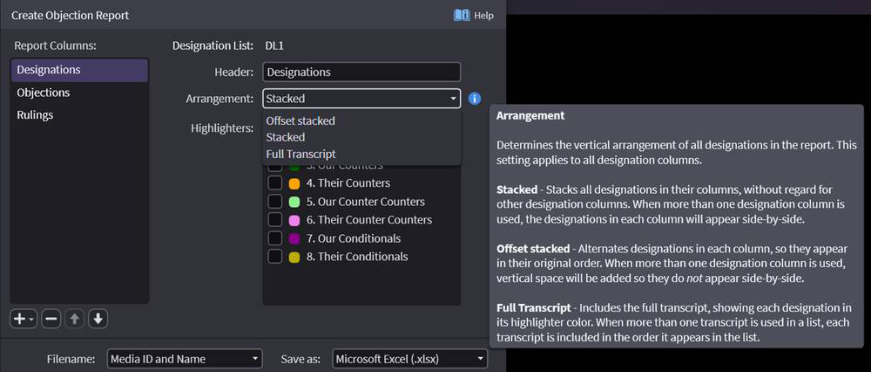
Stacked — Single column - only designated text
Offset stacked — Each parties' designated text in its own column
Full transcript — single column entire transcript - designations bolded in the list colors. Please note: this will not produce correctly if you have overlapping or duplicate designations.
Objection Report Bonus:
1 You can change the name of your headers
2 Any responses or rulings must match the objection page and line not the designation page and line.
3 It must be tab delimited with no extra spaces or tab between columns
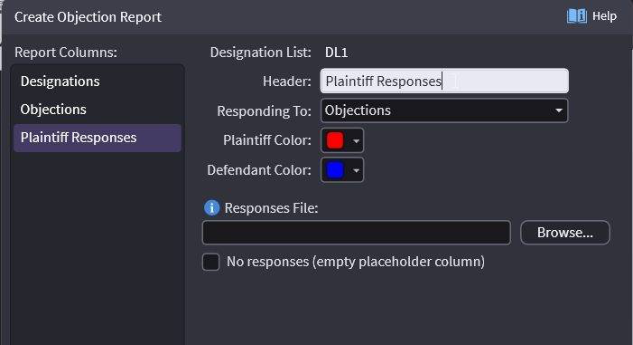
Warning: OnCue does not check spelling, capitalization or punctuation. Anything you put in the text file will be show exactly as is on the report.