Designation Wizard
There is so much you can do with the Designation Wizard! You can add new designation lists, edit existing lists, and import text files. No more guesswork on bad imports.
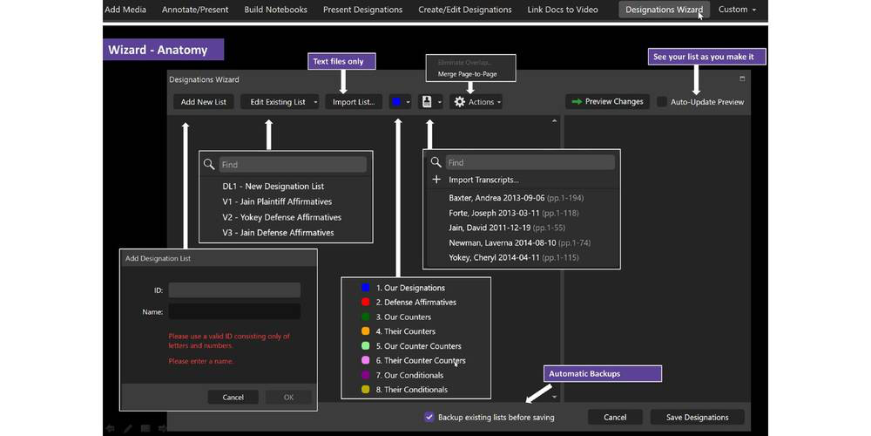
Create New Designations
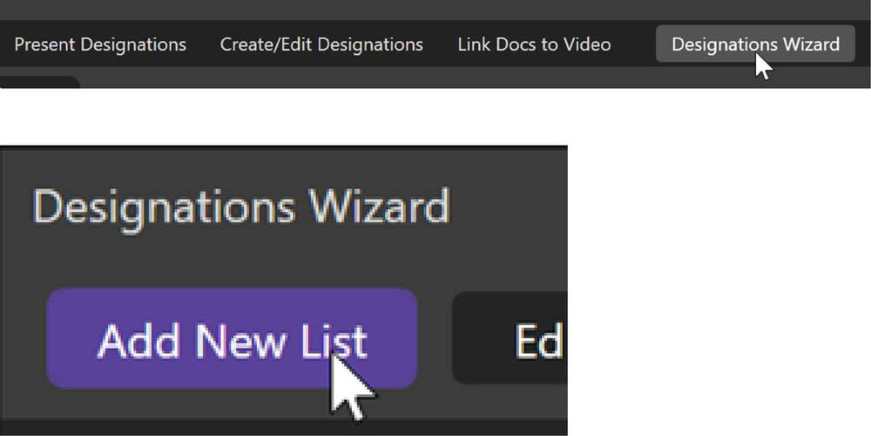
Select Designations Wizard in the Workflow Ribbon
This brings up the Wizard, select Add New List
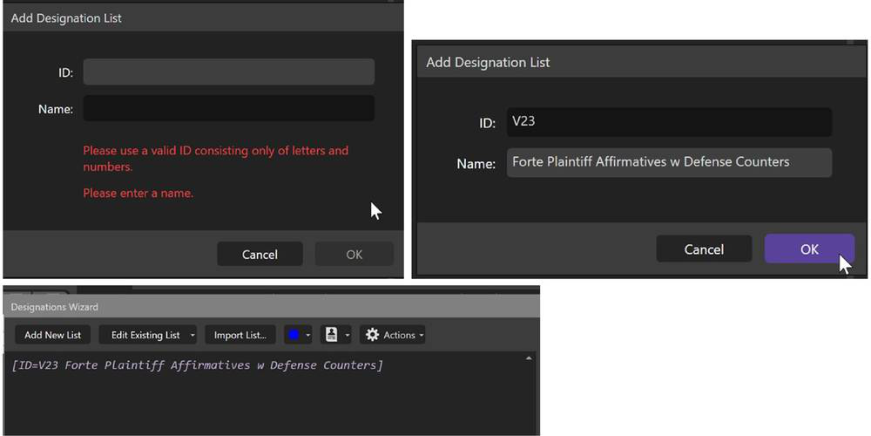
Add an ID and a Name – Hit OK
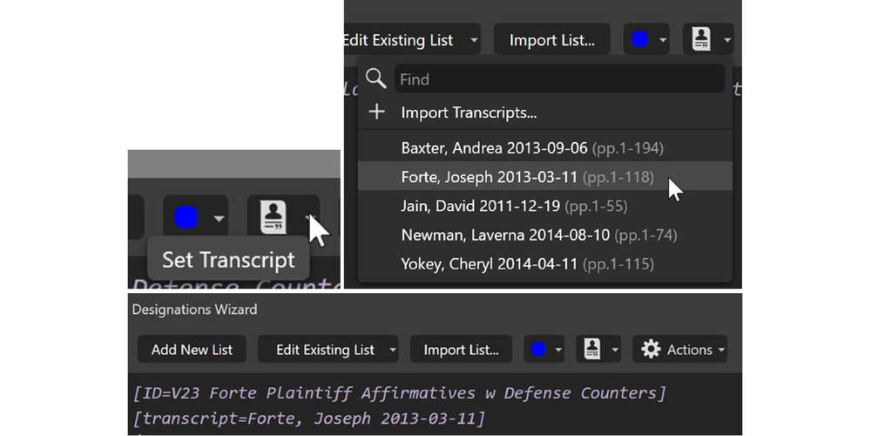
Choose the transcript associated with the designations you are adding.
Choose your designation highlighter color.
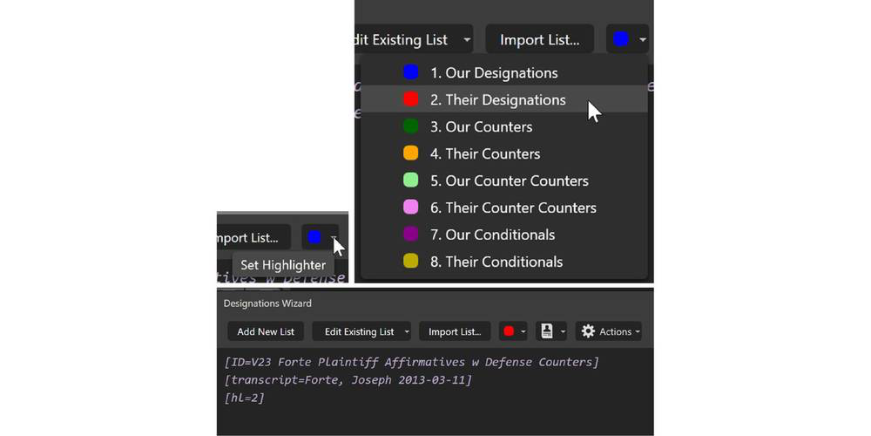
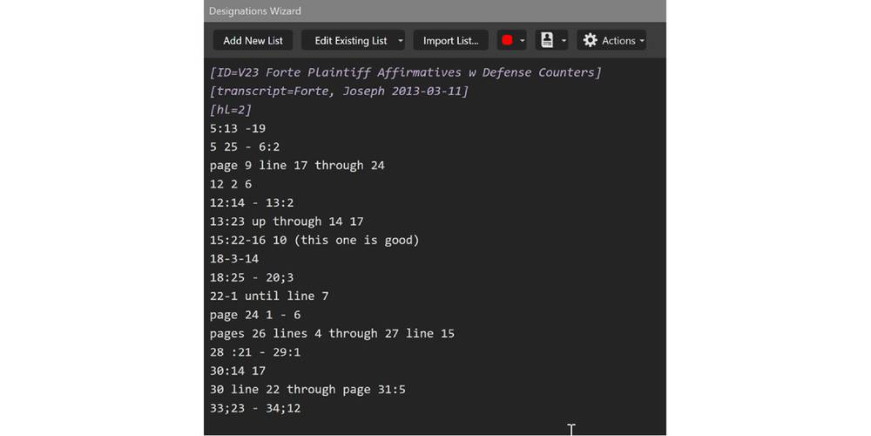
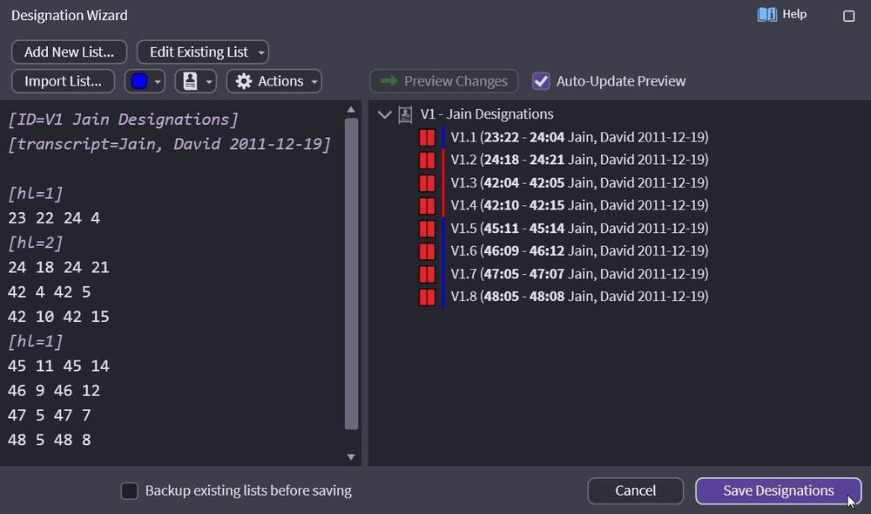
Copy and Paste your designations under the bracketed info.
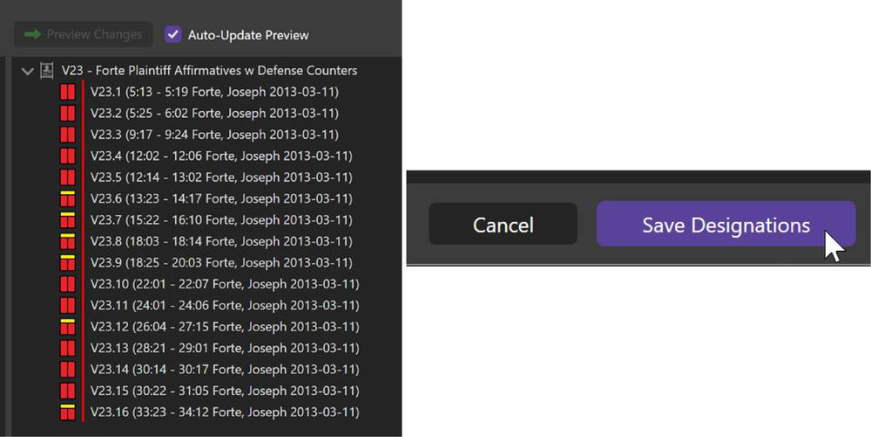
You can preview what your list will look like by selecting Preview Changes or if you have Auto-Update Preview checked.
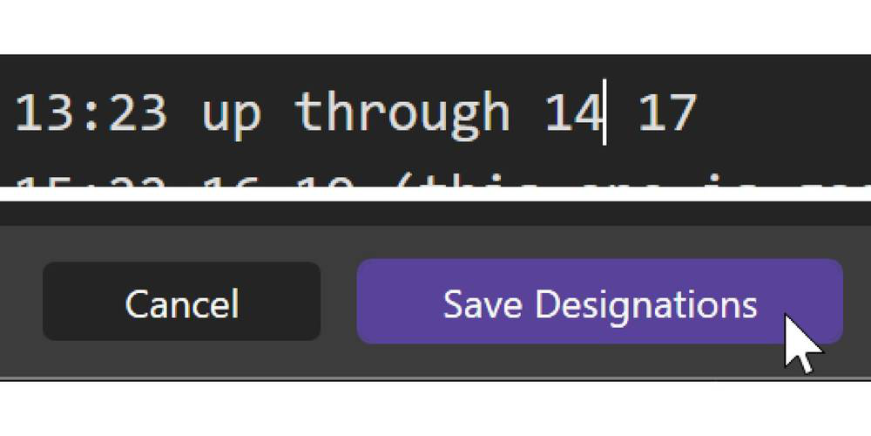
No errors? Click Save Designations.
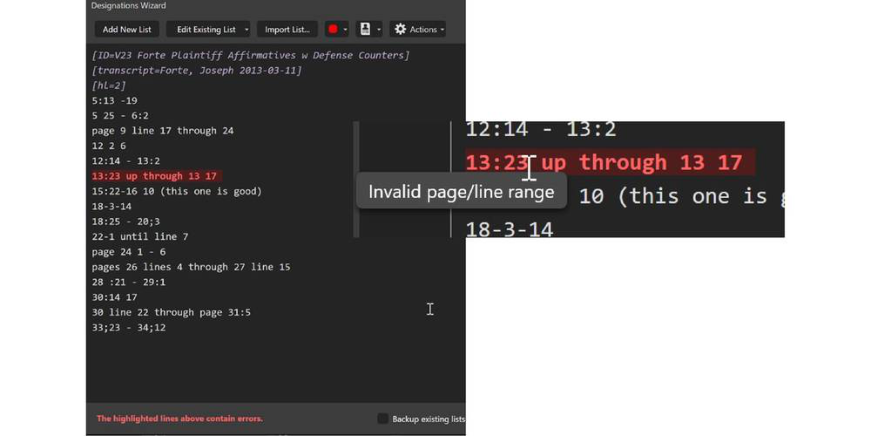
Have errors? Fix them right in the wizard pane. Hovering over the error with your mouse tells you what it is. You can edit right in the pane.
Warnings are highlighted in yellow. Mouse over the warning for an explanation as to what the issue is. The most common warning is the Designation Wizard letting you know that your designation may not begin or end at a question prefix. These are not formatting errors.
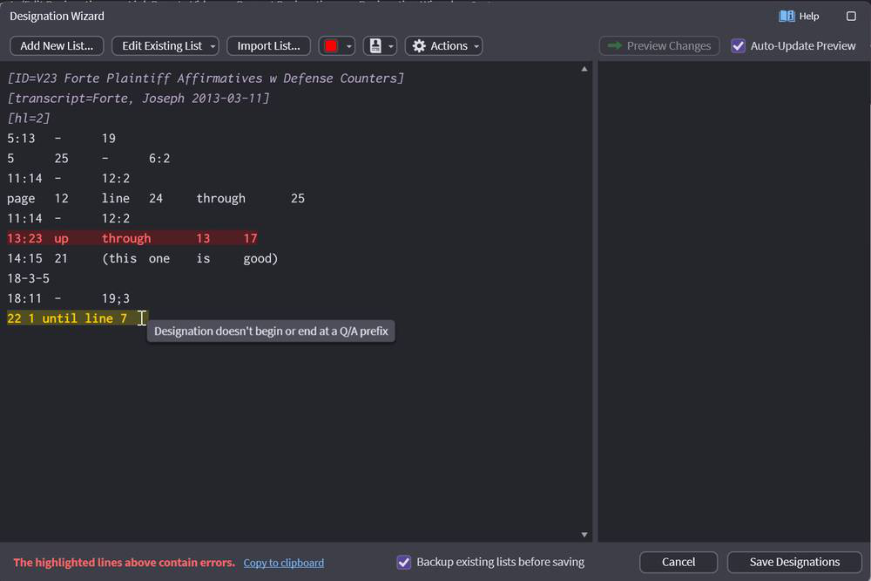
Easy to edit and save when done.
Edit Existing Designations
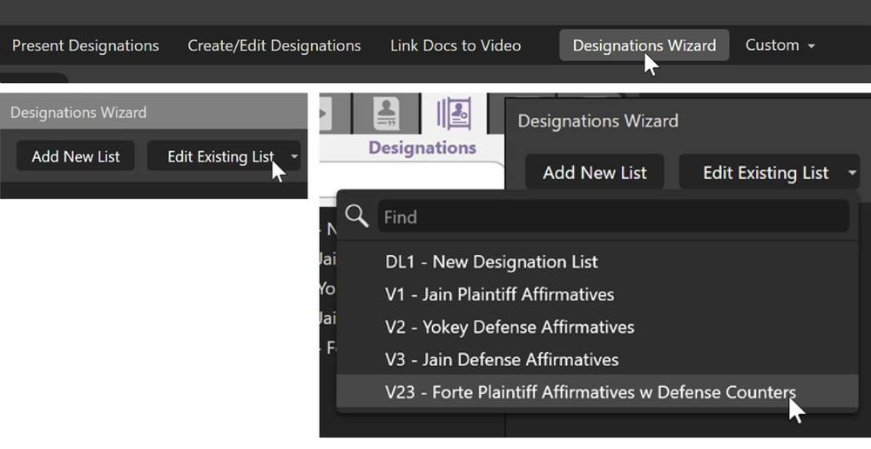
Select Designations Wizard in the Workflow Ribbon.
Then choose Edit Existing List and Select the list you want from the dropdown menu.
OR...
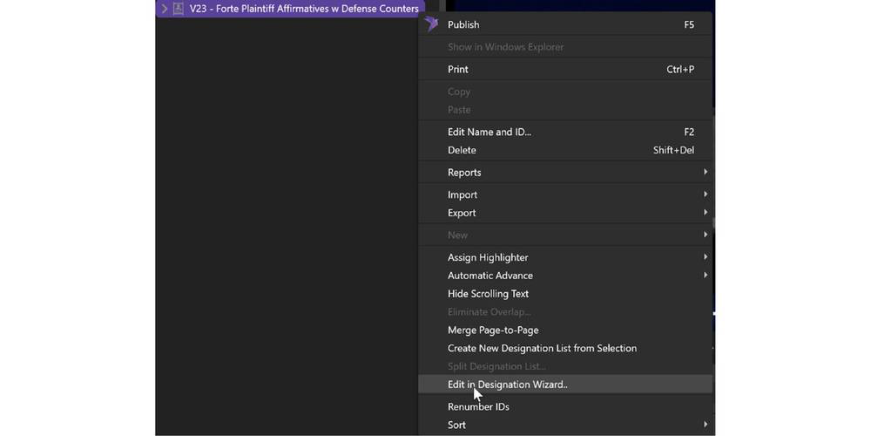
Right-click on your list and select Edit in Designation Wizard. Both will give you the Wizard with your list in it.
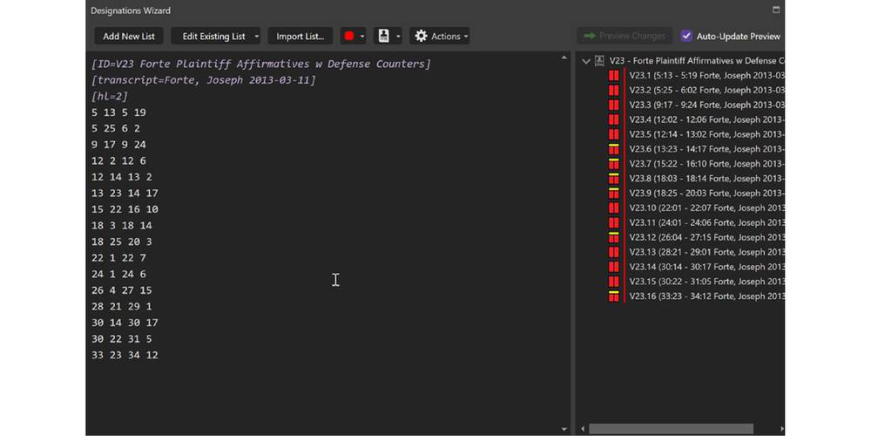
You can change colors or the transcript, add designations, make any change you want. You can even change the ID and Name on a list, but be careful it will the overwrite list with the ID you have selected.
Let’s add counters to an existing list. First, click in the pane underneath the existing designations and then click on the highlighter color button to select a counter color.
Notice the color change at the top when [hl=3] is inserted.
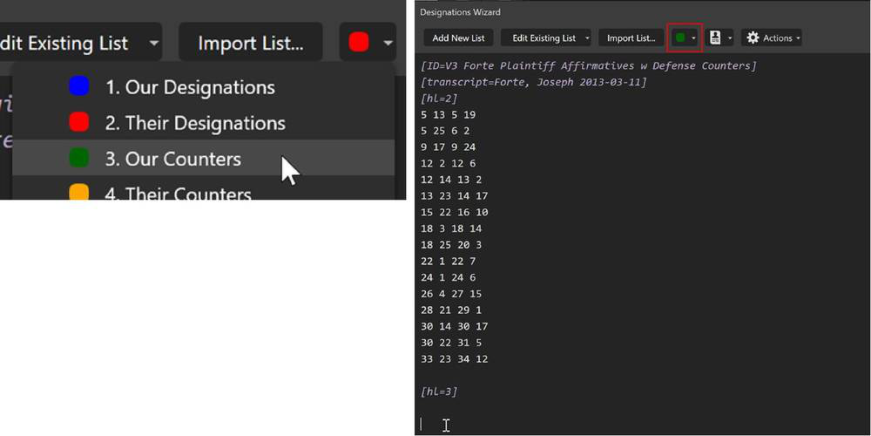
Paste the counters below the [hl=3], notice how the preview shows the counters have been added to the bottom of the list.
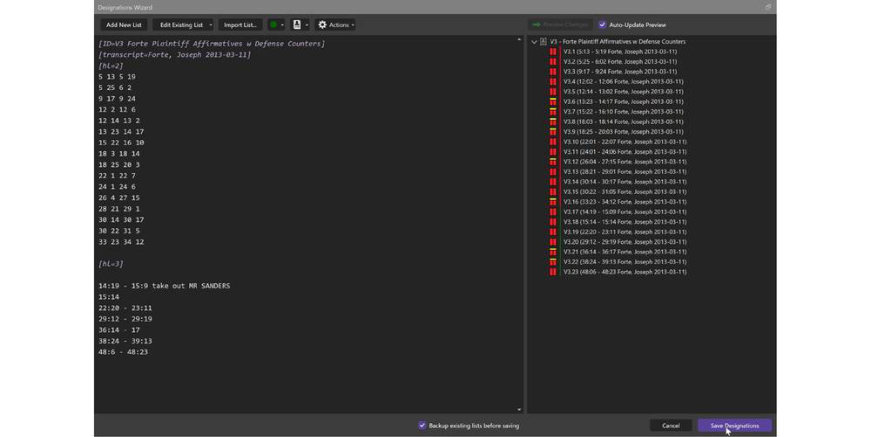
If you want to save a copy of the existing list without changes, check the Backup existing lists option.
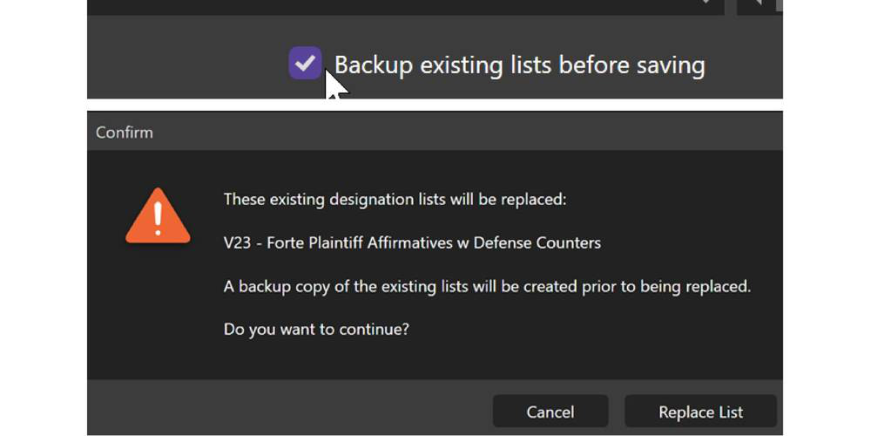
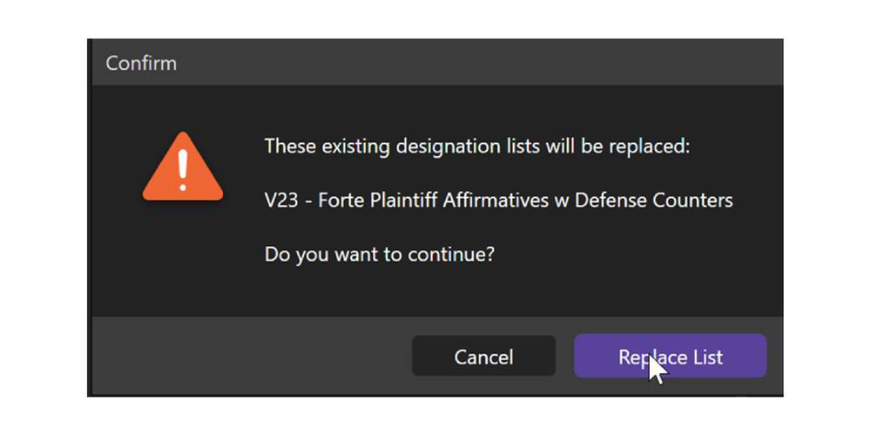
If you don't want the backup, just hit Save Designations. You'll be warned.
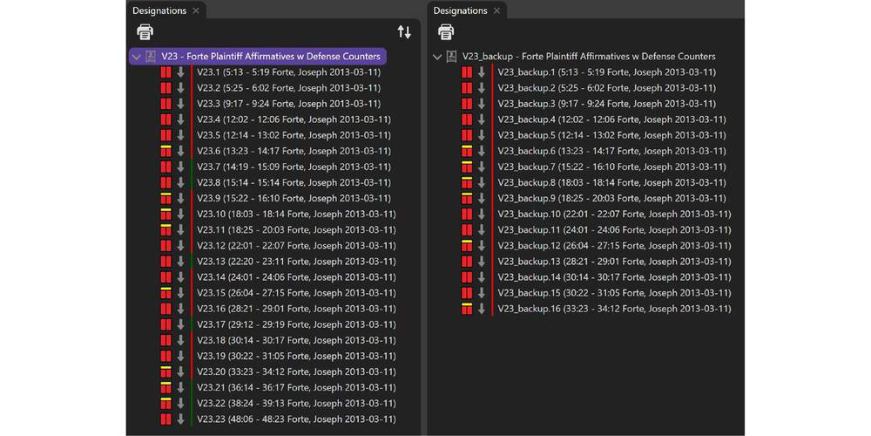
Here’s a side-by-side with the updated list (sorted and renumbered) and the backup.
Change Transcript in Designation Wizard
Rename your old transcript in the transcripts tab. In this example, I have a transcript (sync file) that is Picture in Picture. I selected my transcript and hit F2 to rename.
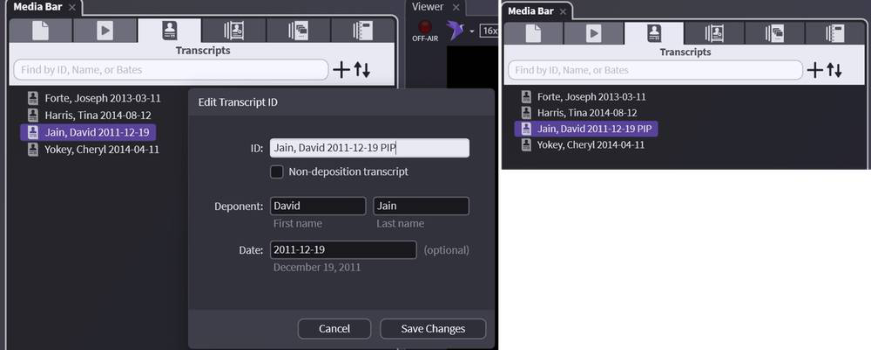
The list you want to change will now show the name change.
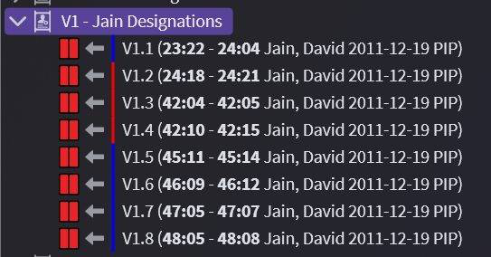
Open the existing list in the designation wizard following the instructions above.
You can add the new transcript in the wizard, if you have already added ignore this step.
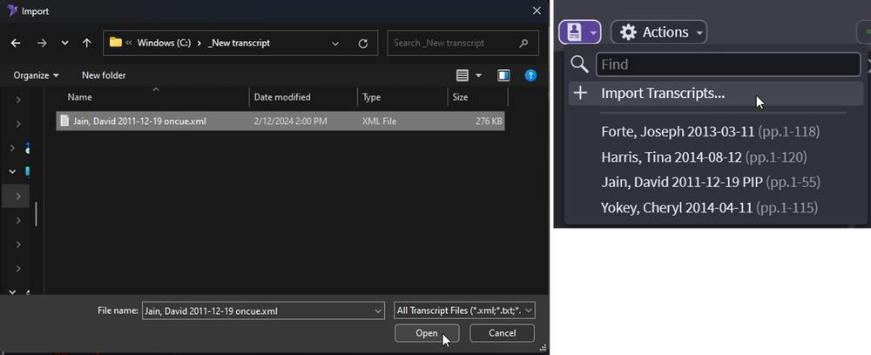
Click inside the Wizard above your designations, so you see the cursor. Then click on the transcript button to select the transcript you want to use.
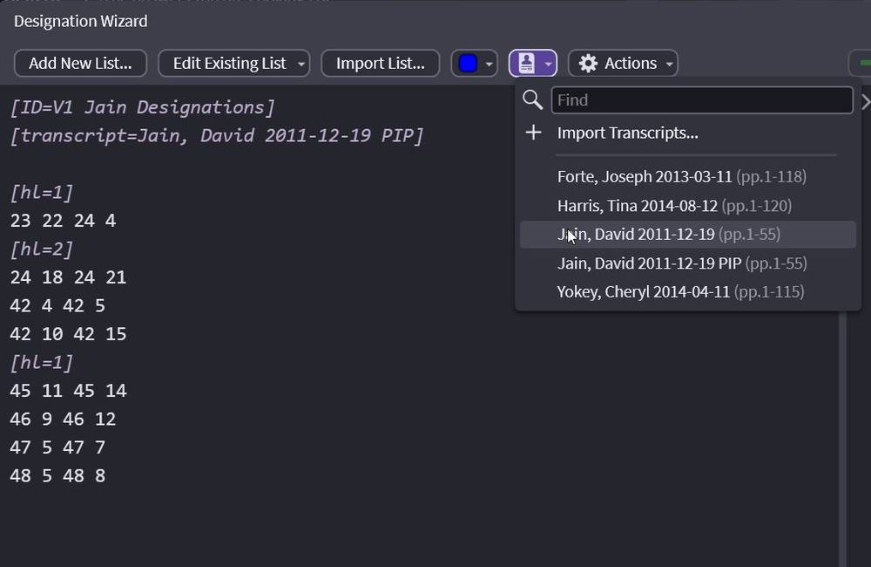
You will see both the old and new in the Wizard. Delete the old list.
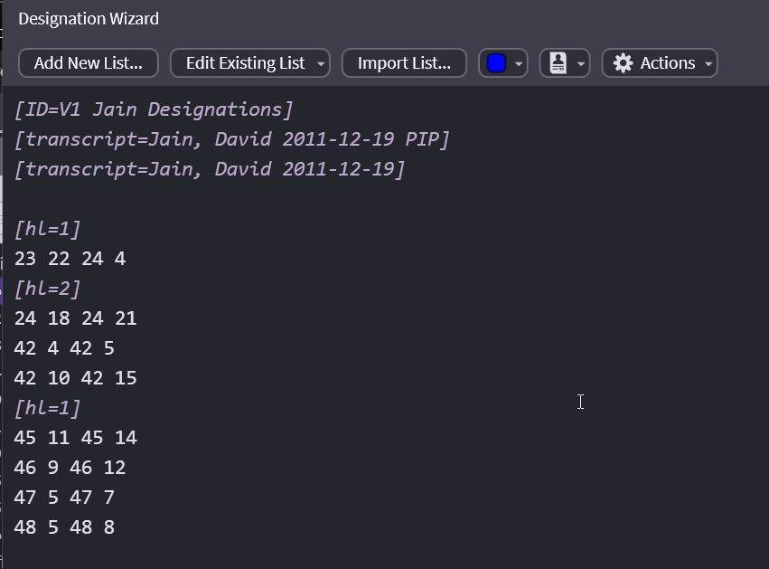
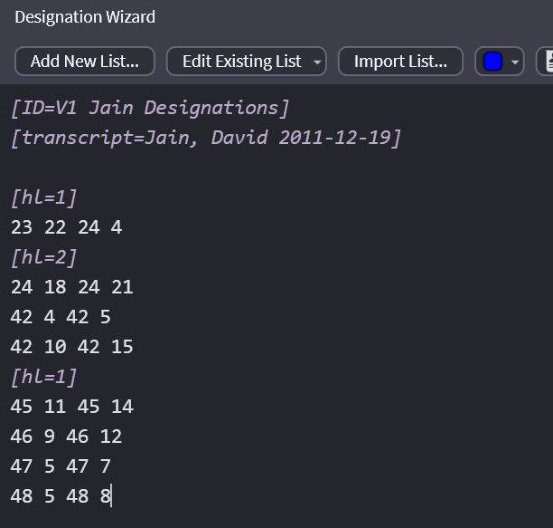
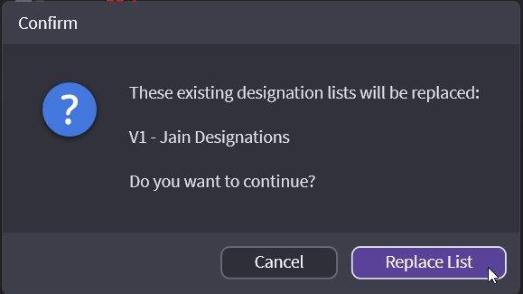
Hit Save designations and then Replace List.
Edit Tuned Designations in the Wizard
Did you already tune a designation list and then get a new changed list and don’t want to lose work you have done? Easy.
1 Open your existing list in the Designation Wizard.
2 Highlight the designations in the Wizard
3 Paste your new designations over the old designations.
IMPORTANT: If you delete designations – all the information is deleted with them. You must paste over existing to keep tuning and text edits.