Admitted Exhibits
Yes, you can mark exhibits as admitted and you can see immediately what is or isn’t okay to publish. You can even prevent something not admitted from being published.
Marking Exhibits
To mark your exhibits – right-click on your document and select Mark as Admitted. To unmark, right-click.

Publish Lock
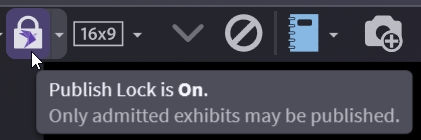
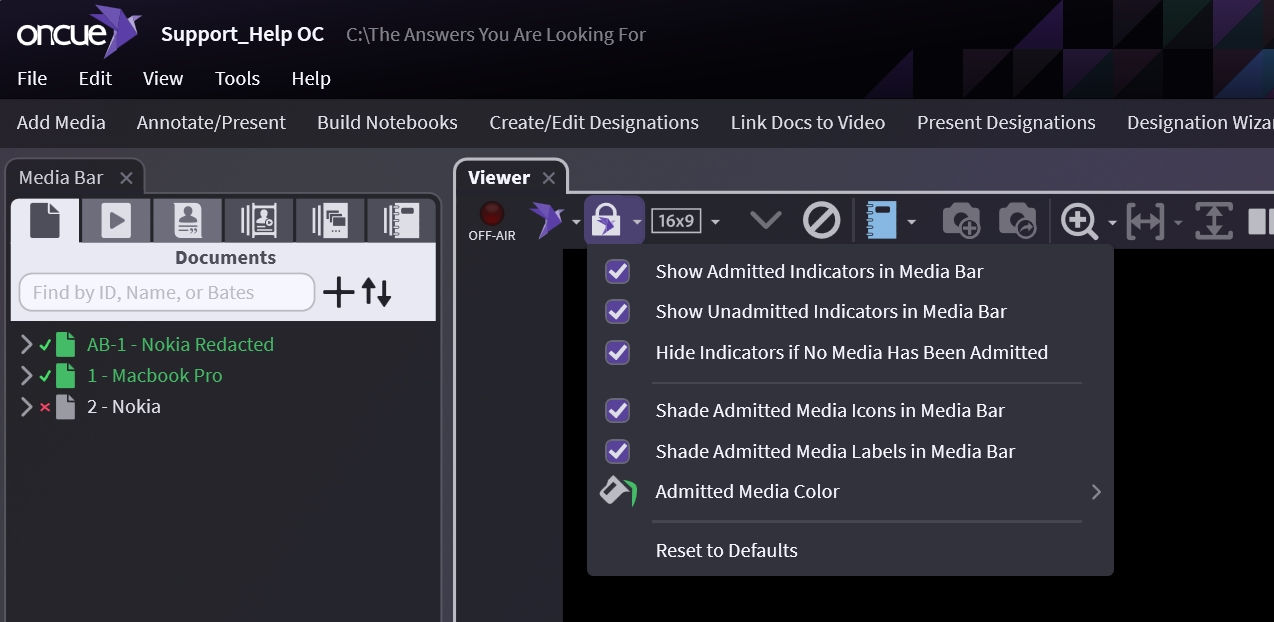
If you have this on, you cannot publish a document without checking the options.
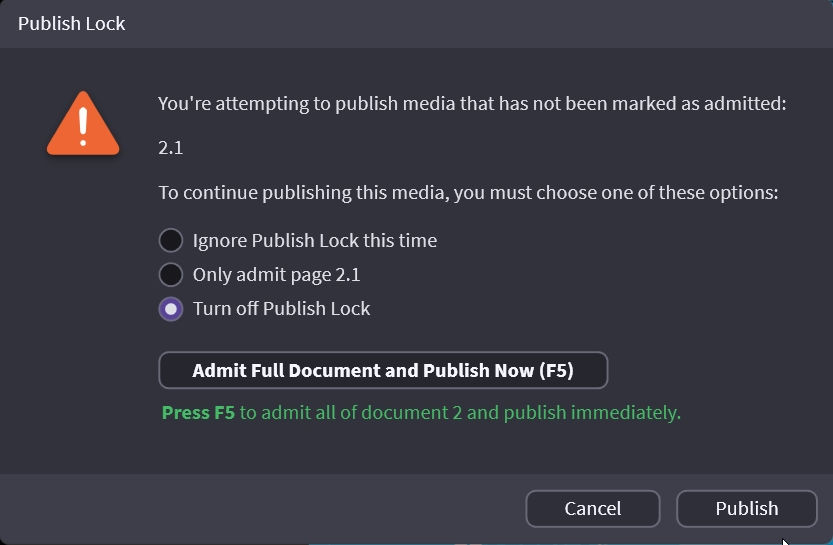
Here are your options:

Show Admitted Indicators in the Media Bar
This puts a little green check mark on admitted exhibits.

Show Unadmitted Indicators in the Media Bar
This puts a red X on your exhibits that are not admitted. We recommend leaving this off and it is off by default.

Hide Indicators if No Media Has been Admitted
This is just what you see – nothing out of the ordinary.
Shade Admitted Media Icons in Media Bar
This shades your icons.

Shade Admitted Media Labels in Media Bar
This is another indicator changing the text.

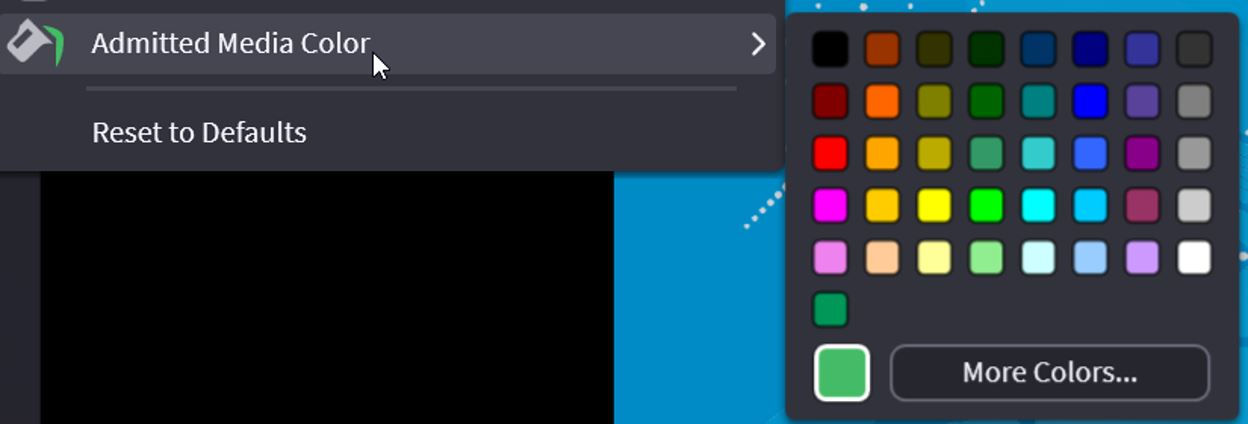
Admitted Media Colors
Here you can do what is more pleasing to your eye.
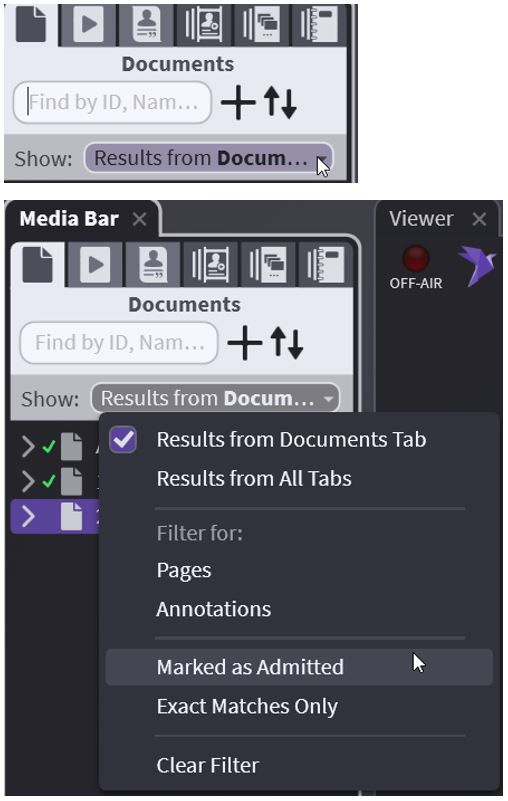
:::info Tip You can filter in the search bar for Admitted exhibits only. Click in the search bar empty space and use the dropdown. :::