Reordering and Renumbering Document Pages
Did you know you can reorder pages inside OnCue without messing with the original/underlying document? Is the first page a title page and the next page is 1? Or maybe the scanned document is out of order?
You can change your starting ID number. Does your document start with page 2, for example?
This method also works reordering annotations.
Fixing a Non-Page Number Start Page
You can drag and drop your pages to reorder a document.
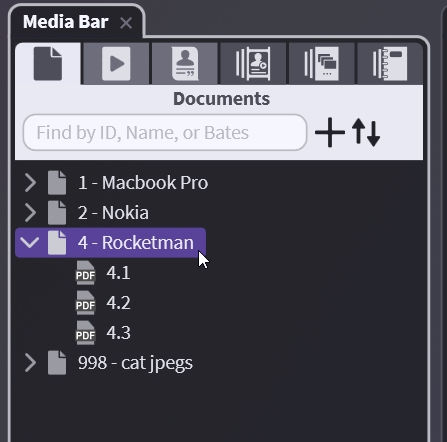
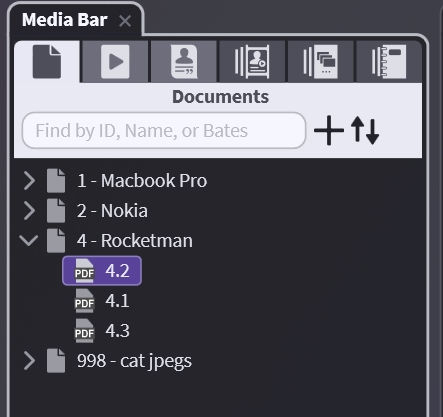
You can drag a title page to the bottom of the document or just delete the pa
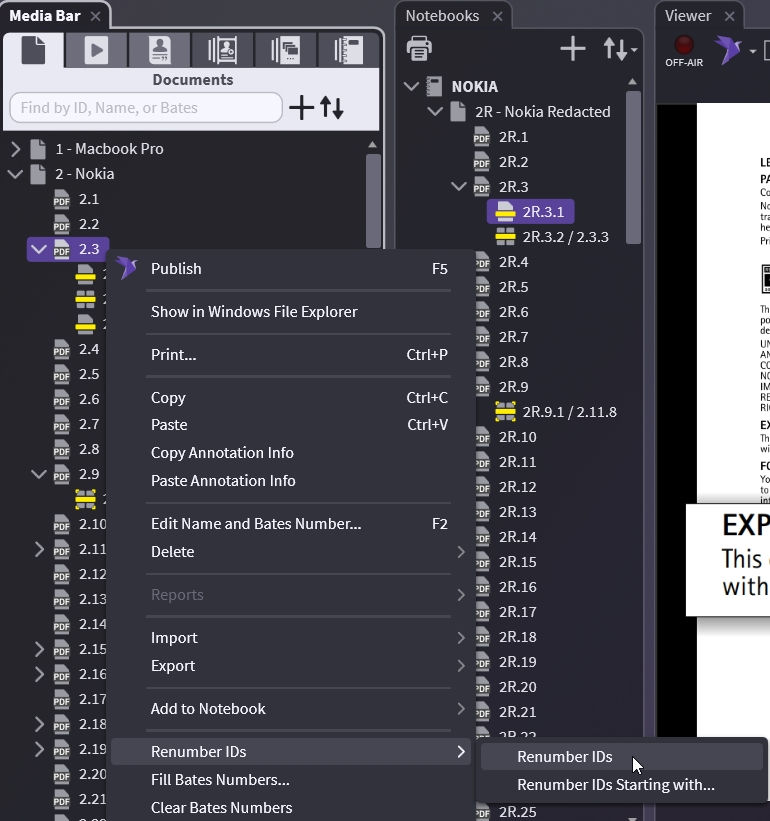
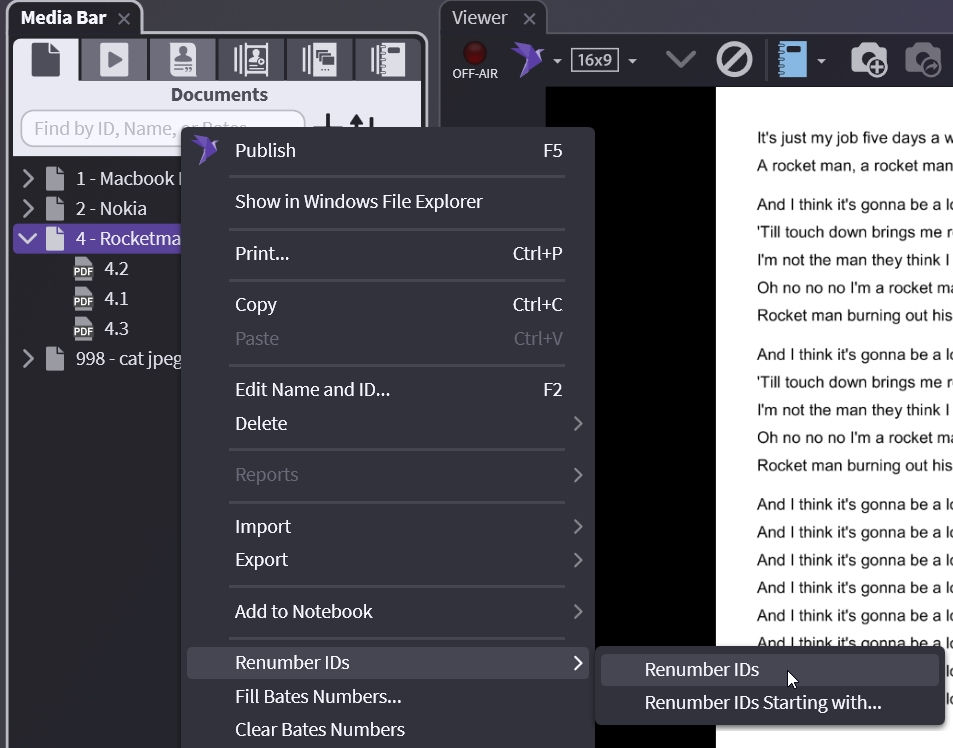
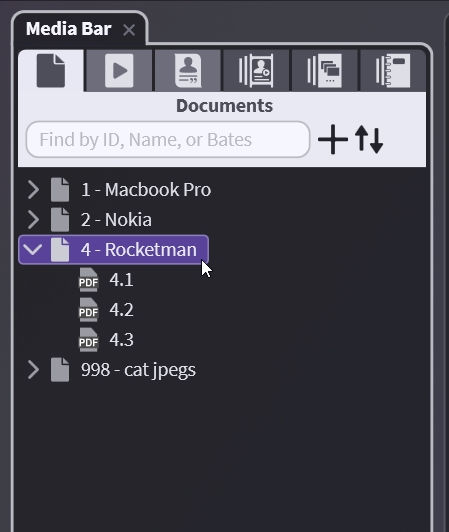
Now right-click on your document, choose Renumber IDs, and choose Renumber IDs again. This renumbers your document starting at 1.
Fixing a Non-Page 1 Start Page
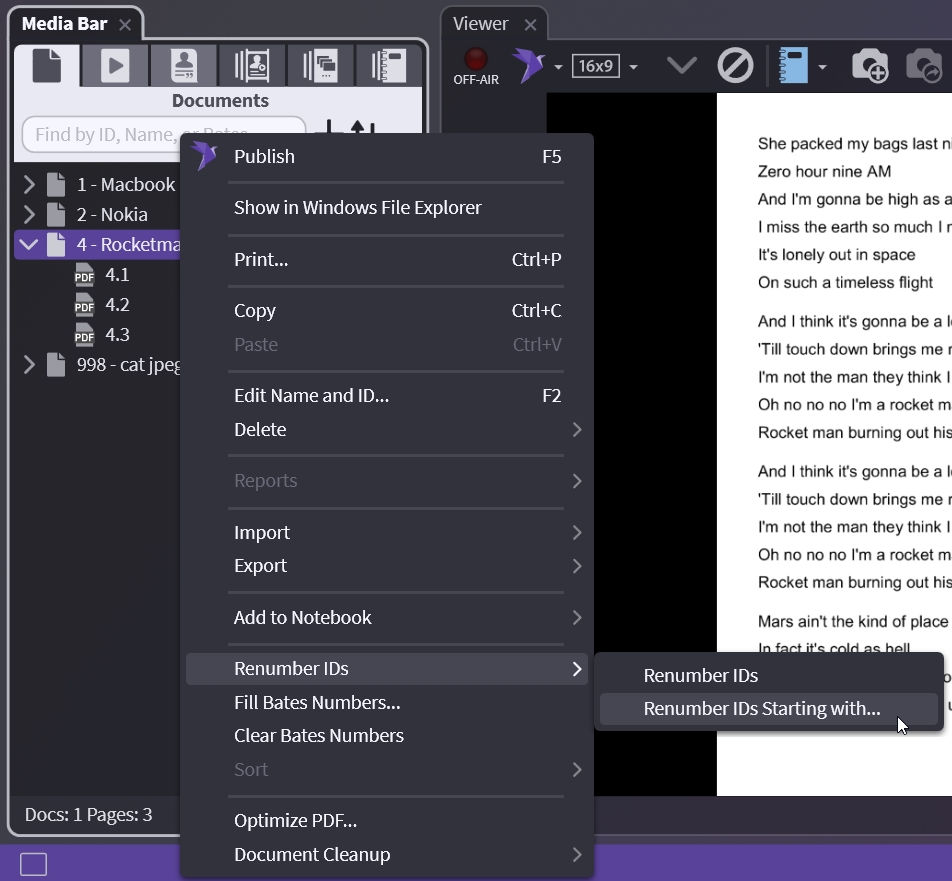
Choose the document you want under the document tab, Right-click, select Renumber IDs, and then Renumber IDs Starting with…
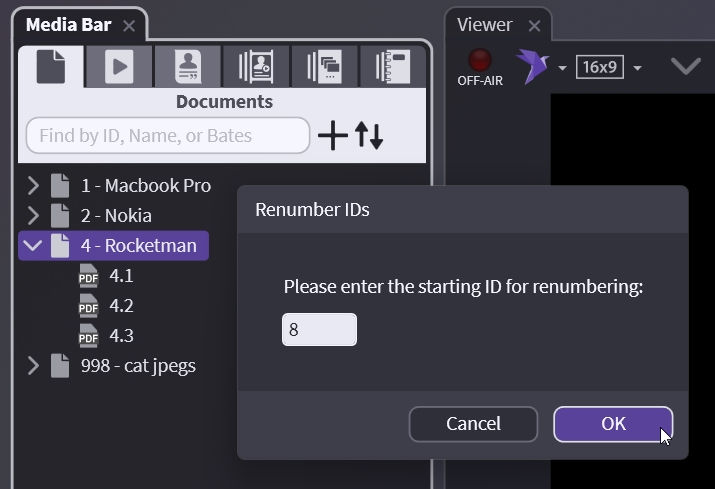
OnCue will only do consecutive numbers for auto-numbering.
You cannot change individual page IDs. To assign alternate IDs use the Bates or Name field.
Changing the Order and Renumbering of Annotations
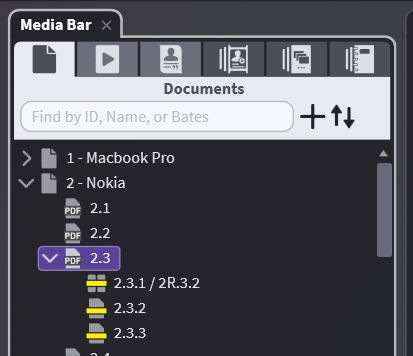
You can drag and drop your annotations to reorder them underneath a page just like you reorder pages in document.
Drag your annotations in the order you want them. This is useful if you plan to use the keyboard arrow hotkeys to cycle through saved annotations, and you’re displaying in a different order than from which they were created.
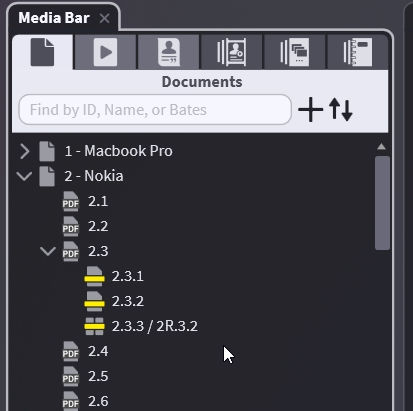
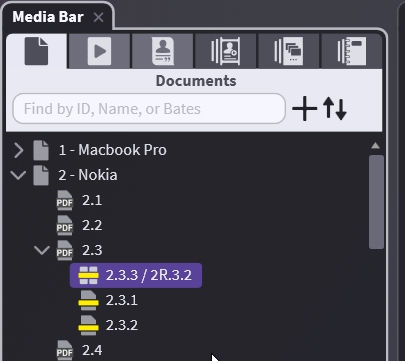
Unless you have a reason to keep the original page IDs regardless of the new order, you should renumber them sequentially. Right-click on the page select Renumber IDs.