Viewing & Annotating Documents
- Can I highlight or mark-up documents?
- Can I highlight a document and present it without saving it?
- Can I prep my callouts and highlights on documents ahead of time?
Viewing Documents
Once your documents are added, they will appear in the Documents section of the Media Bar.
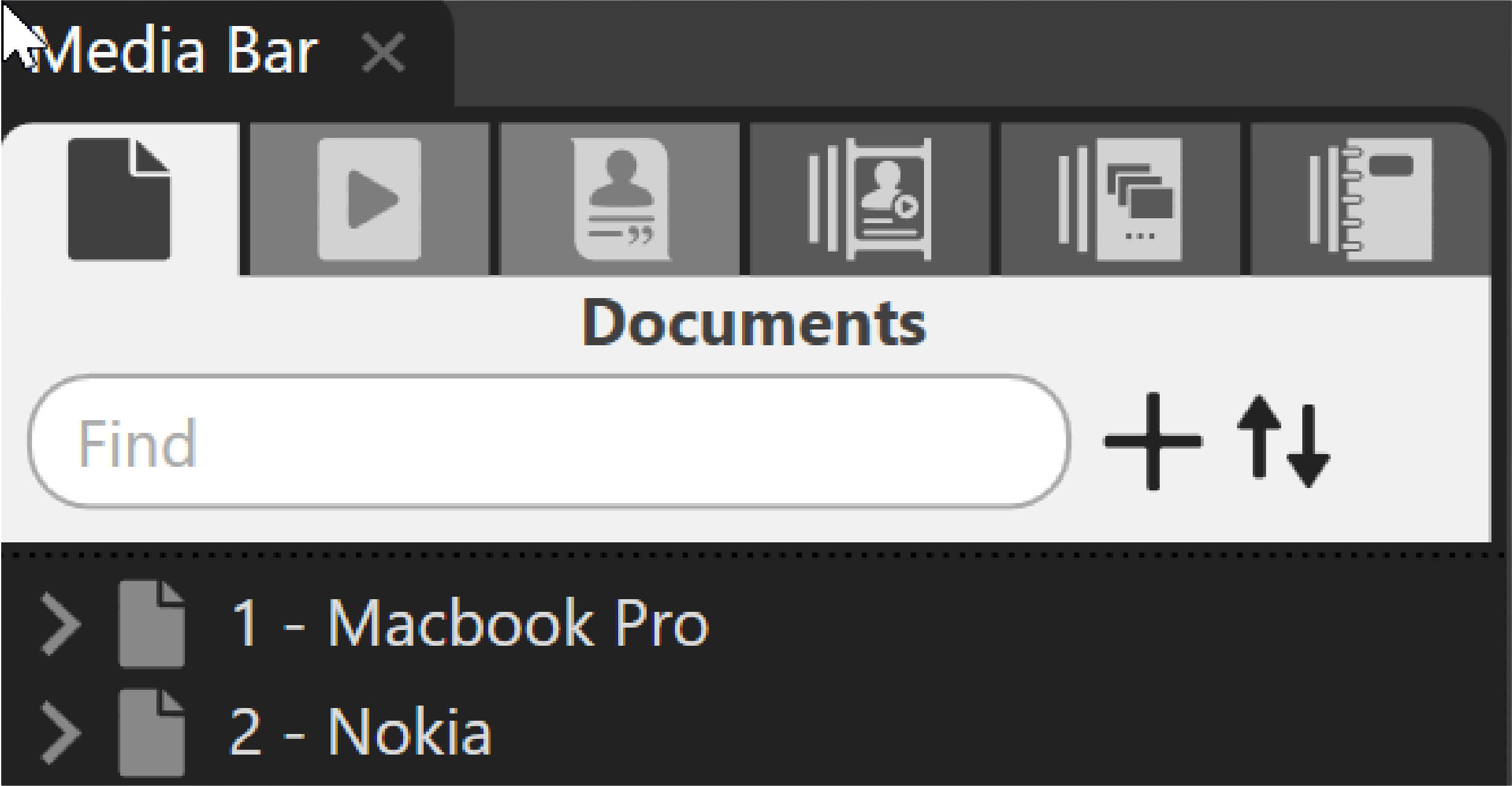
Click on your arrow to expand and show pages.
If you have added .tif, .jpg or *.png files, color pages show up as blue.
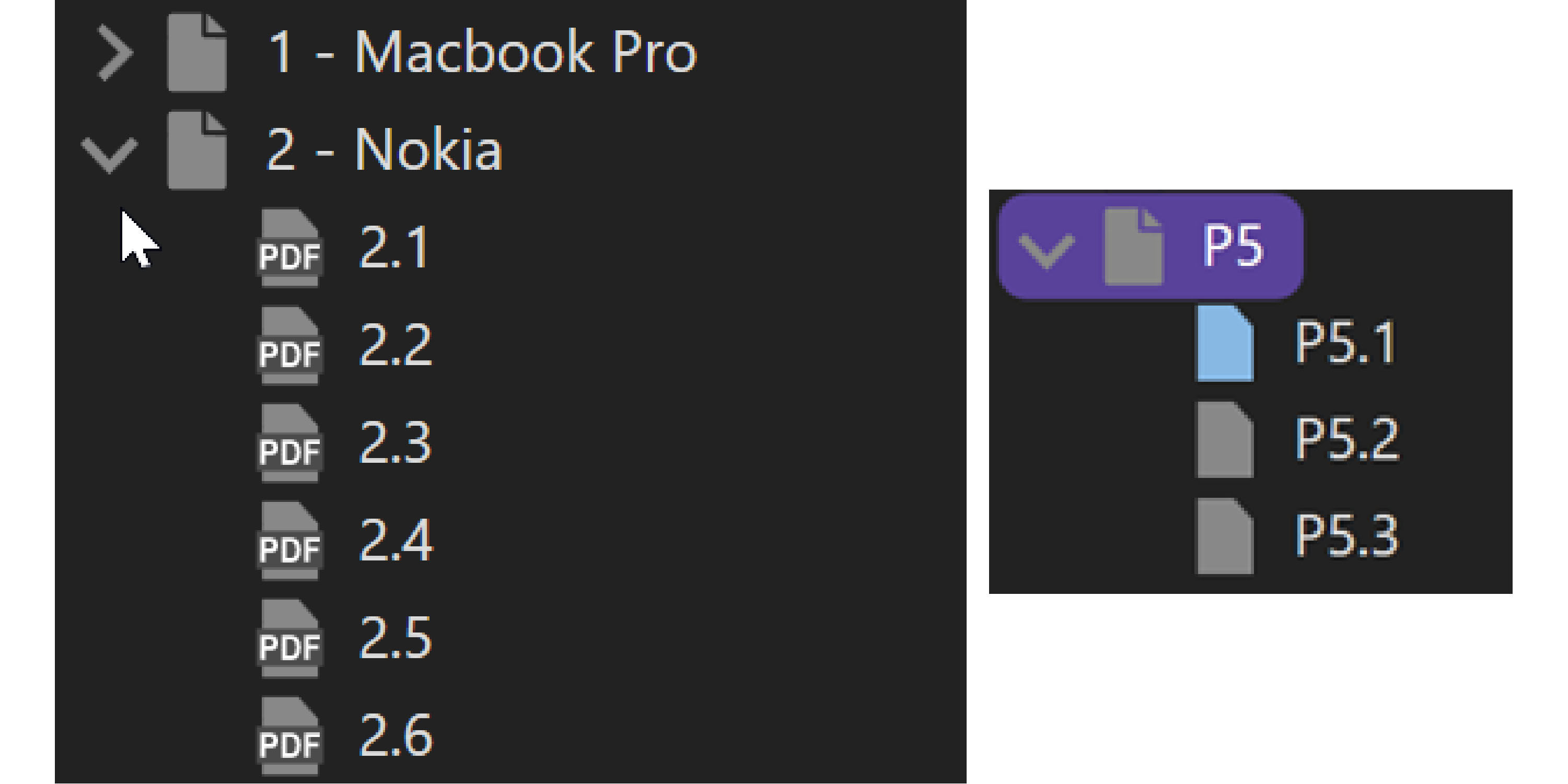
If you do not already see the Viewer pane, double-clicking on a document page will launch it.
Selecting Annotate/Present from the Workflow Ribbon will give the best layout to view documents.
Annotating or Marking Documents
Click on a document and then select Annotate/Present in the Workflow Ribbon.
Use the toolbar to mark-up or annotate your documents. You can send any annotation to Presentation Mode without saving it.
Or Save them – this allows you to prepare your annotations (mark-ups or treatments) in advance. OnCue does not mark on the original document nor does it save a secondary document (.jpg or .bmp) but saves a “script” with instructions. You can update your annotations if you want to change them.
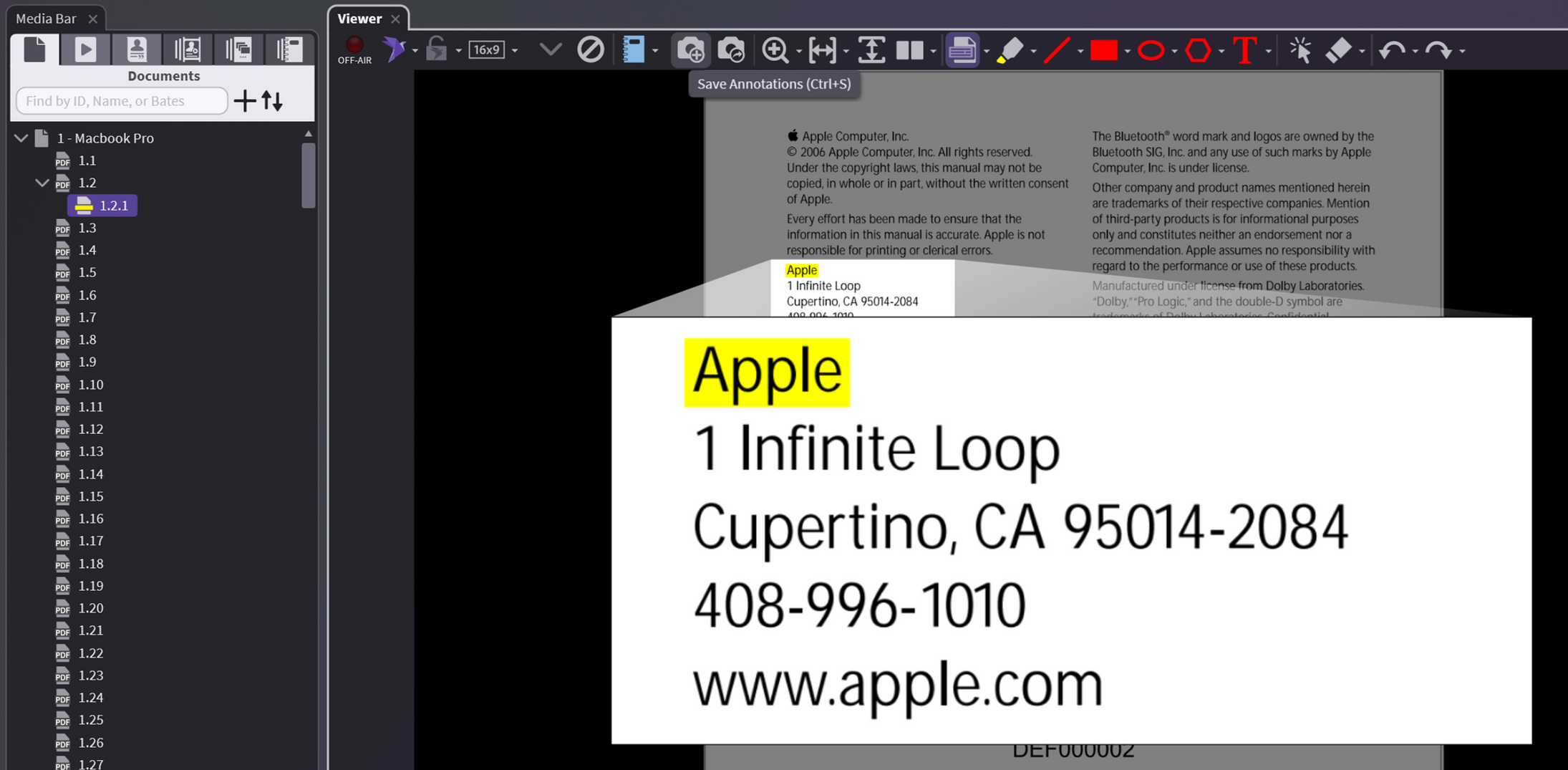
When you save your annotation, and it is shown underneath the original page with a new ID number. Example: An annotation for 1.2 (ID.page) is saved as 1.2.1. That is the first annotation for page 2 of document 1.

Save Annotations (Ctrl + S) is found in the Viewer toolbar
Once the documents have been added to OnCue and annotated to your satisfaction and saved, they can be added to Notebooks or Presentations – the processes for which are discussed in depth in those sections.
Double-clicking on an annotation deletes it.
Hitting “E” erases them all.
Check out the Getting to know your Toolbar article for all your options.
Right-Click Menus
Main Document:
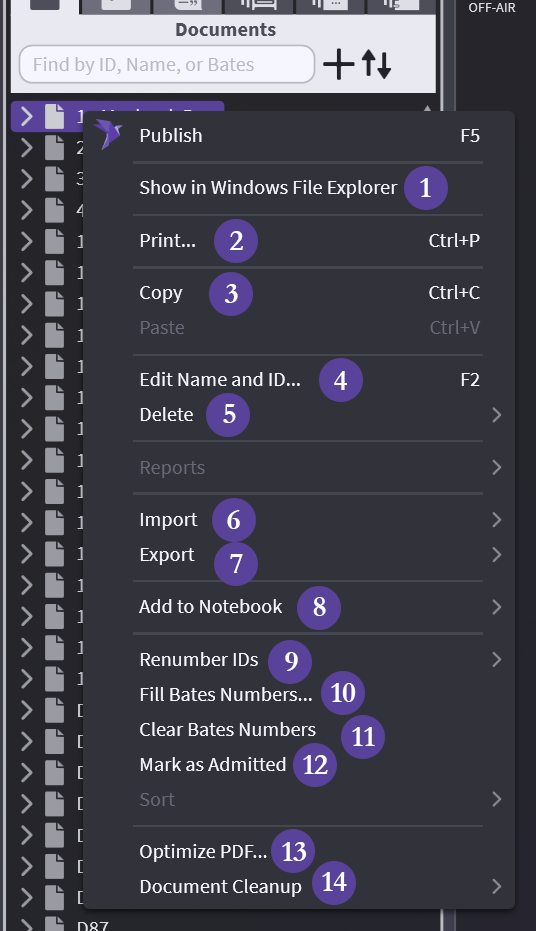
| # | Command | Action |
|---|---|---|
| 1 | Show in Windows File Explorer | Exactly as described – opens folder where your file is |
| 2 | Print... | Exactly as described – see Printing for options |
| 3 | Copy | Copy your entire document and paste: into a Notebook, Media Script, or another document |
| 4 | Edit Name and ID... | Change the name and ID in OnCue only, not underlying document |
| 5 | Delete | Careful, 2 options: database only or database and drive |
| 6 | Import | All options for import available, not tied to documents |
| 7 | Export | 2 options: exhibit list and images |
| 8 | Add to Notebook | Add to existing (list provided) or create new |
| 9 | Renumber IDs | Move pages in a document or delete pages, keep your IDs consecutive using this |
| 10 | Fill Bates Numbers... | See Bates Numbering – Filling & Importing for options |
| 11 | Clear Bates Numbers | Careful, whatever you're clicked on will clear and there is no undo |
| 12 | Mark as Admitted | Marks document as admitted |
| 13 | Optimize PDF... | See Optimize Your PDFs for options and what they mean |
| 14 | Document Cleanup | Not recommended to do an entire database at once |
Page Level:
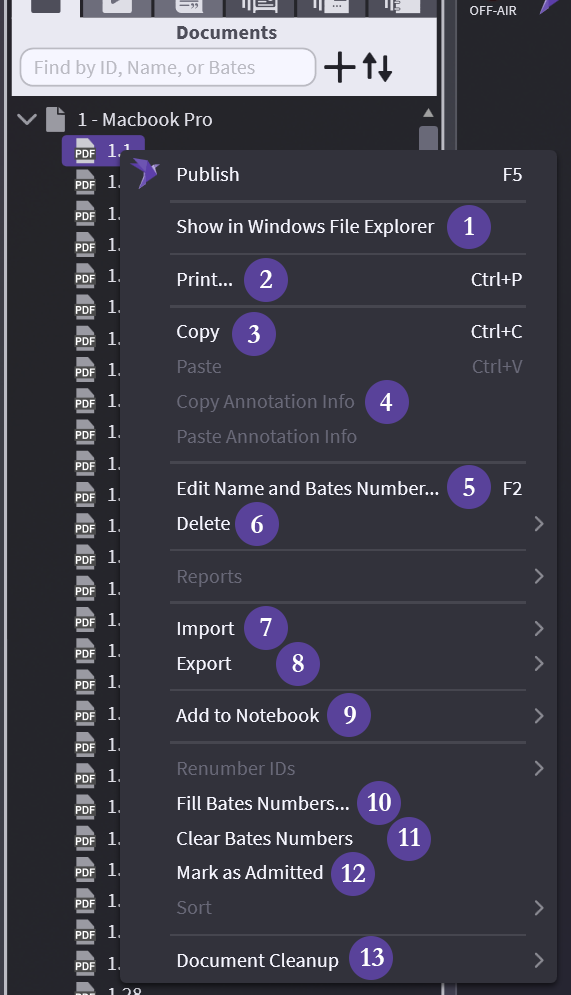
| # | Command | Action |
|---|---|---|
| 1 | Show in Windows File Explorer | Exactly as described – opens folder where your file is |
| 2 | Print... | Exactly as described – see Printing for options |
| 3 | Copy | Copy the page(s) and paste: into a Notebook, Media Script, or another document |
| 4 | Copy Annotation Info | Copy the Annotation to a different page or document. Annotations are "directions" of where on the page to annotate and what to do. |
| 5 | Edit Name and Bates Number | Change the name of page and Bates in OnCue only, not underlying document |
| 6 | Delete | Careful, 2 options: database only or database and drive |
| 7 | Import | All options for import available, not tied to documents |
| 8 | Export | 2 options: exhibit list and images |
| 9 | Add to Notebook | Add to existing (list provided) or create new |
| 10 | Fill Bates Numbers... | See Bates Numbering – Filling & Importing for options |
| 11 | Clear Bates Numbers | Careful, whatever you're clicked on will clear and there is no undo |
| 12 | Mark as Admitted | Marks document as admitted |
| 13 | Document Cleanup | Single or multipage Deskew/Rotate - check your options |
Annotations/Treatments:
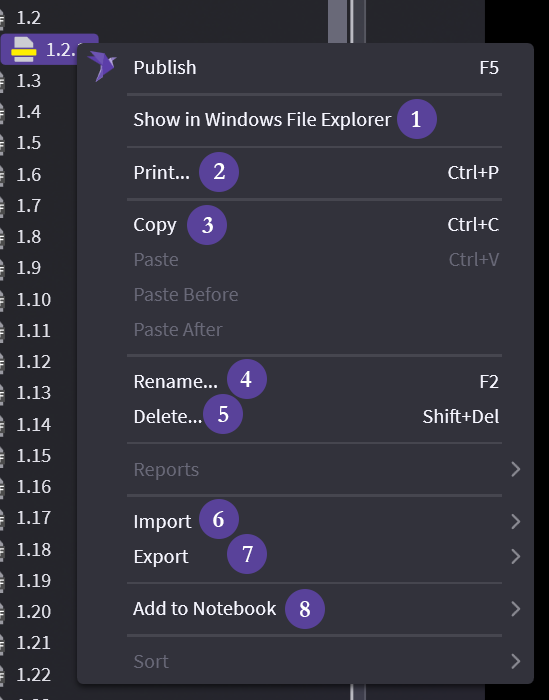
| # | Command | Action |
|---|---|---|
| 1 | Show in Windows File Explorer | Exactly as described – opens folder where your file is |
| 2 | Print... | Exactly as described – see Printing for options |
| 3 | Copy | Copy the page(s) and paste: into a Notebook, Media Script, or another document |
| 4 | Rename | Change the name or add a name |
| 5 | Delete | Careful, no undo |
| 6 | Import | All options for import available, not tied to documents |
| 7 | Export | 2 options: exhibit list and images |
| 8 | Add to Notebook | Add to existing (list provided) or create new |
Add to Notebook
Add to existing (list provided) or create new
Document in Viewer:
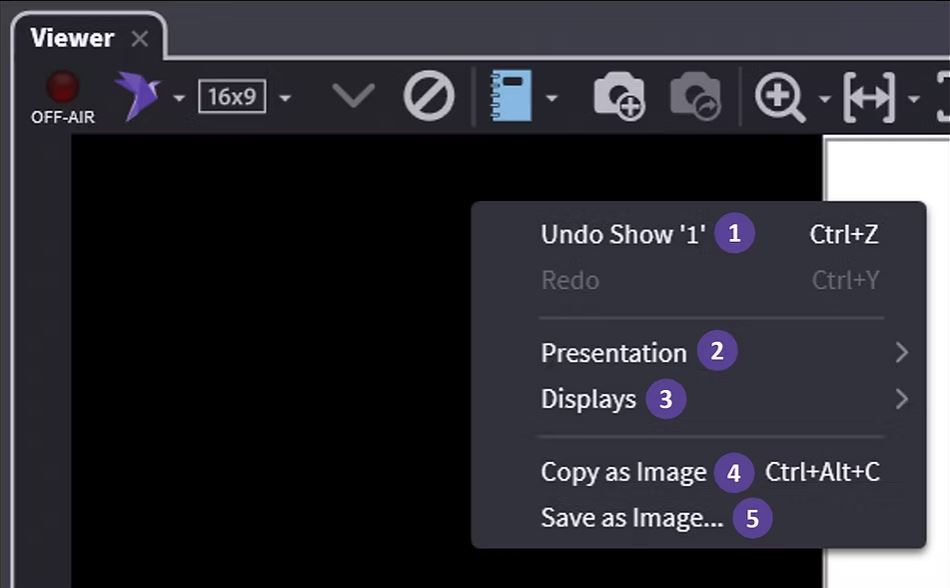
| # | Command | Action |
|---|---|---|
| 1 | Undo Show/Redo | As described |
| 2 | Presentation | Choose how you present |
| 3 | Displays | Choose your display |
| 4 | Copy as Image | No background copied - (see Copying & Exporting Images if background is needed) |
| 5 | Save as Image... | Save as *.png |