Deactivating a License
Licensing Topics:
Deactivating a License
Managing Your License
Emergency Activation (Break Glass)
Installing on Multiple Computers or Changing Licenses
Canceling Your Subscription
We understand how this program is used, so we knew better than to permanently bind it to any certain computer. You can use one license to unlock on any two machines. You can deactivate one or both at any time to unlock on a new machine. Yes, you really can move your licenses around from machine to machine. The only restriction is it just goes on two at once.
NOTE: Deactivating a license does not cancel your subscription. See our article Canceling your Subscription****for more information about this topic.
How to Deactivate a License
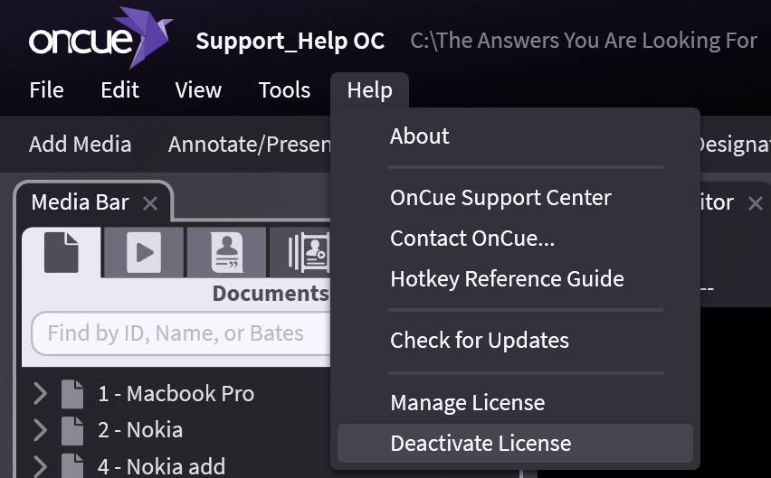
Under the Help menu in OnCue, you can deactivate the license on the current computer, making it available to put on any other machine.
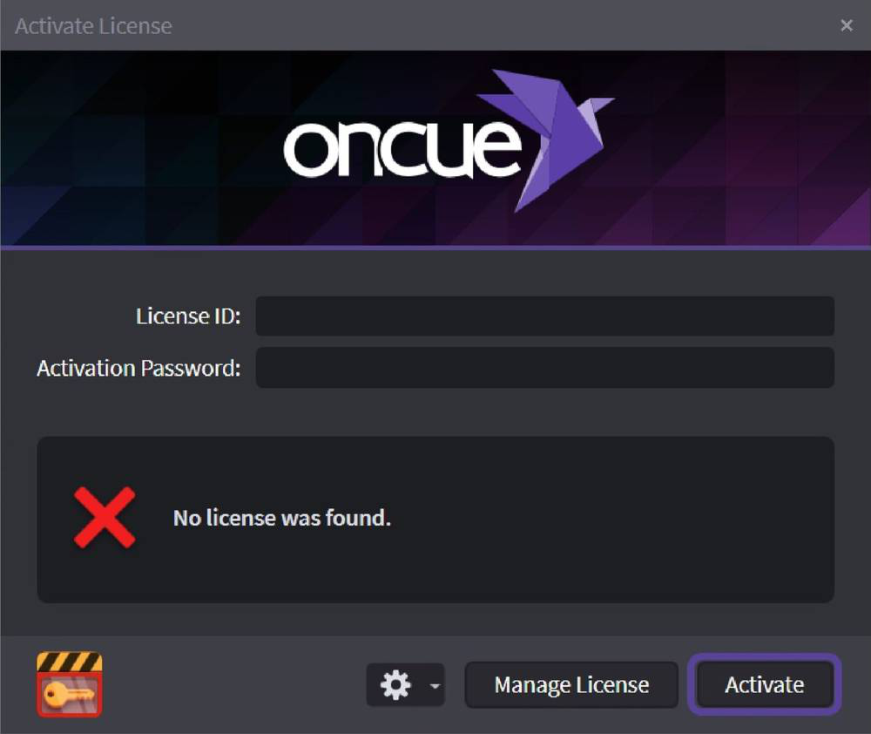
If you no longer have access to both computers, you've installed it on, it's easy to fix that too. Just click on Manage License button at the bottom of the activation screen and you can deactivate them by clicking Manage Installations.
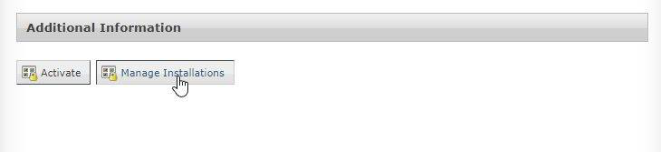
Hit the X to deactivate.

Deactivating a license does NOT cancel it. See our article Canceling your Subscription****for more information about this topic.