Understanding your Right-Click Menu – Media Scripts
A lot of OnCue's features are accessible in right-click menus for various files and work product. If you're ever in doubt about what you can with something–just right-click it.
Here is a list of articles that show all of the right-click menus in the program:
• Documents (including the Viewer pane with a document showing)
• Audiovisuals (including the Viewer pane with an audiovisual file showing)
• Transcripts (including the Transcript Viewer pane)
• Designations
• Media Scripts
• Notebooks
Main Script:
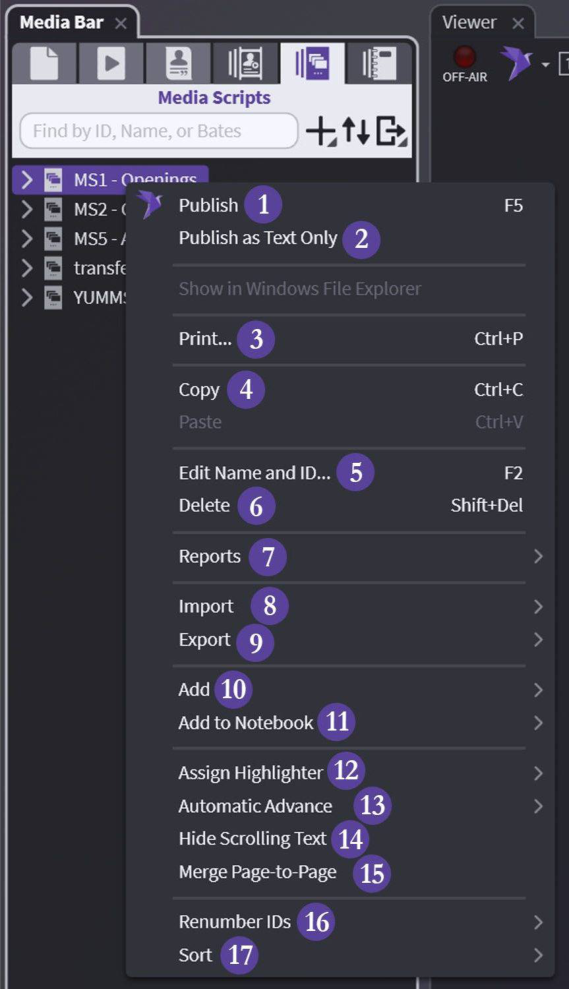
(1) Publish — Exactly as described – presents the Media Script
(2) Publish as Text Only — Designations that play as a part of the Media Script will show text only
(3) Print — Exactly as described – see Printing for options (designations will print ID, not text)
(4) Copy — Copy your entire Media Script and paste into a Notebook or another Media Script
(5)Edit Name and ID — As described – change the name and ID in OnCue
(6)Delete — Careful – no undo
(7) Reports — As described – See Deposition Designation Reports
(8) Import — All options for imports available
(9) Export — See Exporting Media Scripts
(10) Add — Add to existing by typing or create new
(11) Add to Notebook — Add to existing (list provided) or create new
(12) Assign Highlighter — Change highlighter colors for designations included in the Media Script
(13) Automatic Advance — Change the way your script plays – auto (set time) or launch each clip one at time
(14) Hide Scrolling Text — As described designations – Presentation Mode
(15) Merge Page-to-Page — Any designations included in the Media Script will be merged page-to-page. See Editing Designations - Page Line Edits
(16) Renumber IDs — Move elements around or delete – Keep your IDs consecutive using this
(17) Sort — Many options – See Sorting Designation Lists
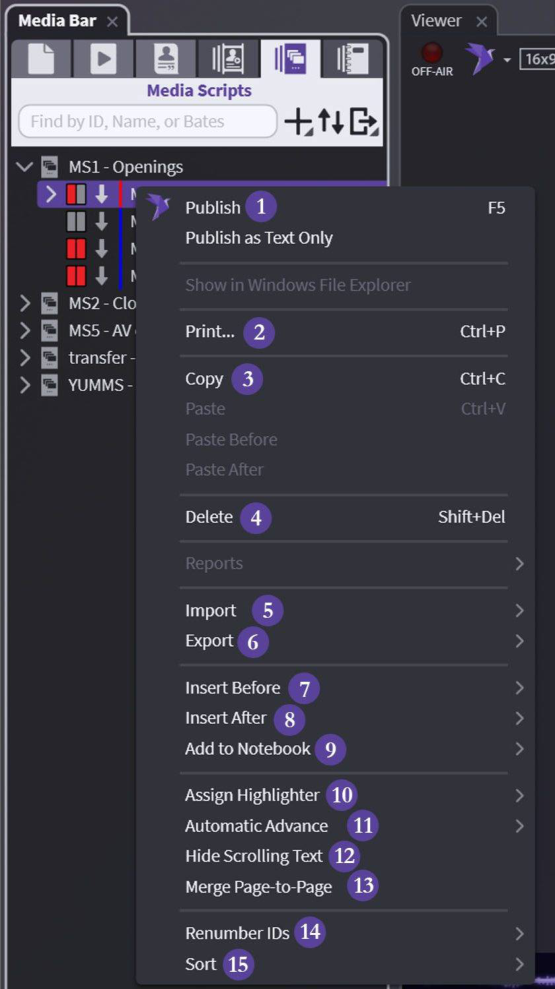
Element/Segment Level:
Start playing in presentation from selected element – will continue to intended stop
(2) Print
(3) Copy — Copy the selected elements and paste – into a Notebook or Media Script
(4) Delete
(5) Import
(6) Export — 2 options: exhibit list and images
(7) Insert Before — Insert element before existing selected
(8) Insert After — Insert element after existing selected
(9) Add to Notebook
(10) Assign Highlighter — Change highlighter colors for selected designation(s)
(11) Automatic Advance — Change the way your selected element plays – auto (set time)
(12) Hide Scrolling Text — Only shows scrolling text for selected designation(s)
(13) Merge Page-to-Page — Selected designation(s) will be merged page-to-page. See Editing Designations - Page Line Edits
(14) Renumber IDs — Renumbers IDs of media in the Media Script (does not change source IDs)
(15) Sort