Printing Notebooks
Printing from Notebooks is a fast and easy way to generate hard-copies for a witness, argument, or for attorney review.
How to Print Notebooks
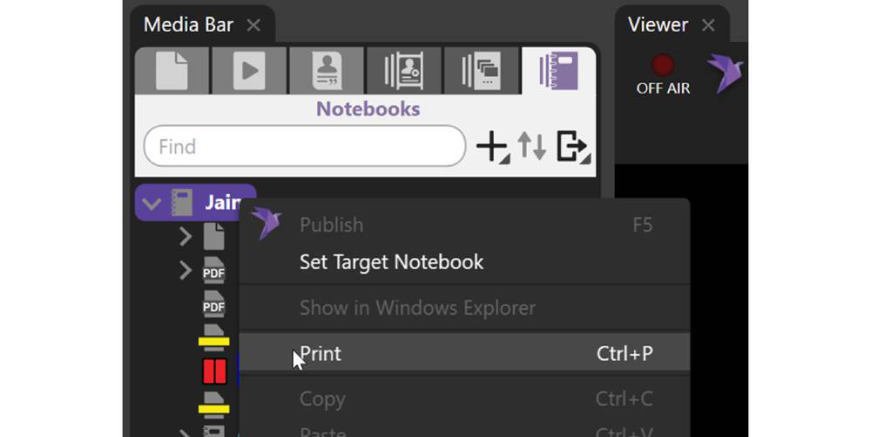
Simply right-click on top of the Notebook and select Print from the drop-down menu.
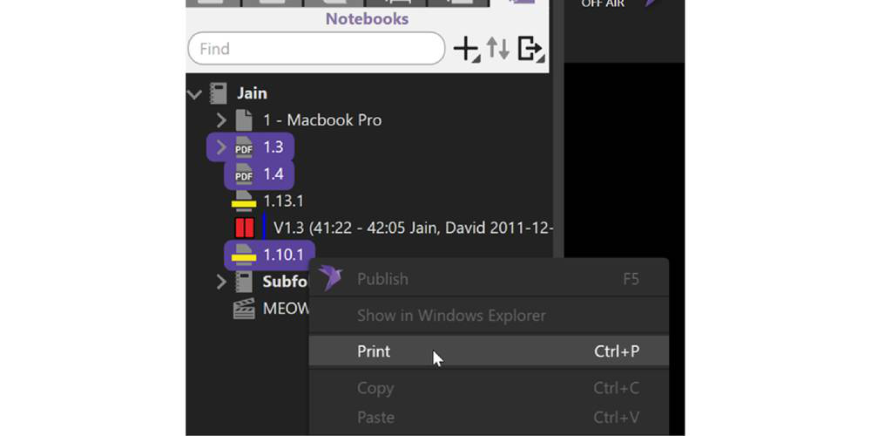
If you want to print only a few items and not the entire notebook, simply select each item you want to print while holding down the CTRL key. Once you have selected the items within the Notebook that you want to print, right-click, and select Print from the drop-down menu.
The Print dialog window has many options for printing Notebooks explained below:
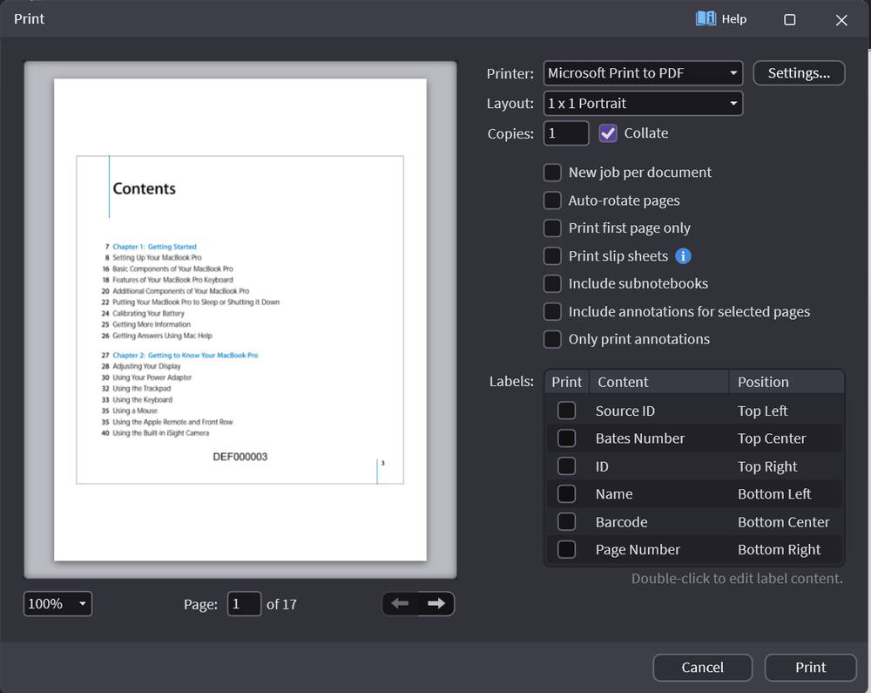
New job per document — Creates a separate PDF for each document printed from the notebook
Auto-rotate pages — Rotates any pages that have text
Print first page only — Prints the first page of each document in the notebook
Print slip sheets — Prints slip sheets in between each document in the notebook
Include subnotebooks — Print all documents from subnotebooks
Include annotations for select pages — Will also print annotations from pages in the notebook
Only print annotations — Will only print annotations from pages in the notebook