Playback of Designation Lists
Presenting a designation list is the same as presenting any other media in OnCue.
The underlying deposition video files should be copied to the _synchedvideos folder in your OnCue case. It's important to put the individual video files in the root of that folder (not in subfolders). OnCue looks for the video in this folder.
How to Present
To play back Designation Lists select the Media ID in Production, then press the Publish button on the Workflow Ribbon or use the F5 hotkey.
You can also launch a blank Presentation screen in OnCue by hitting Ctrl + F5. Click on the blank screen and then type X + Media ID and then hit ENTER.
When playing designations, you will see the Designation Dashboard on your production screen.
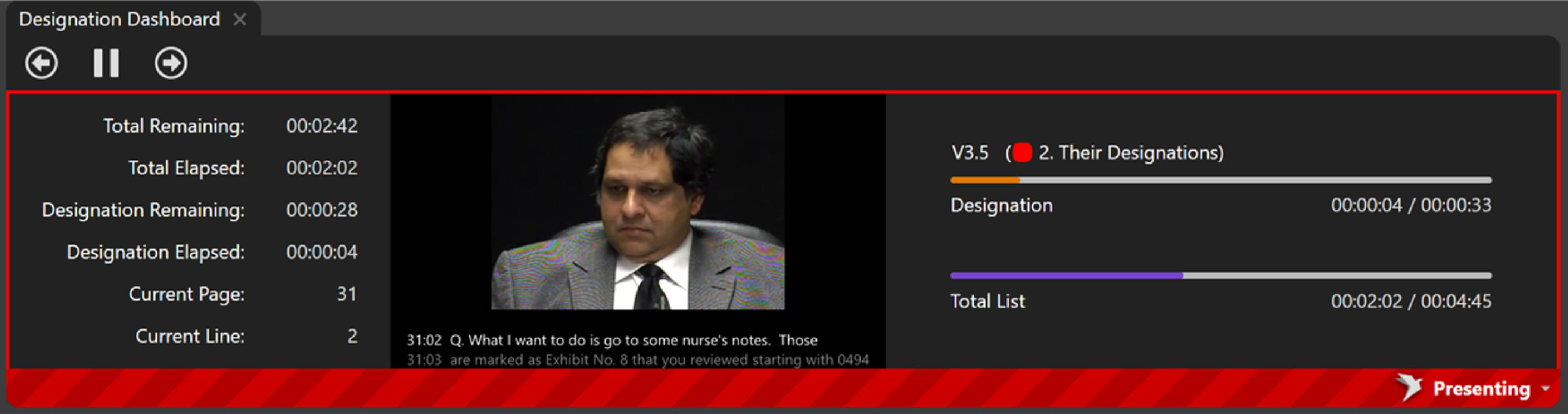
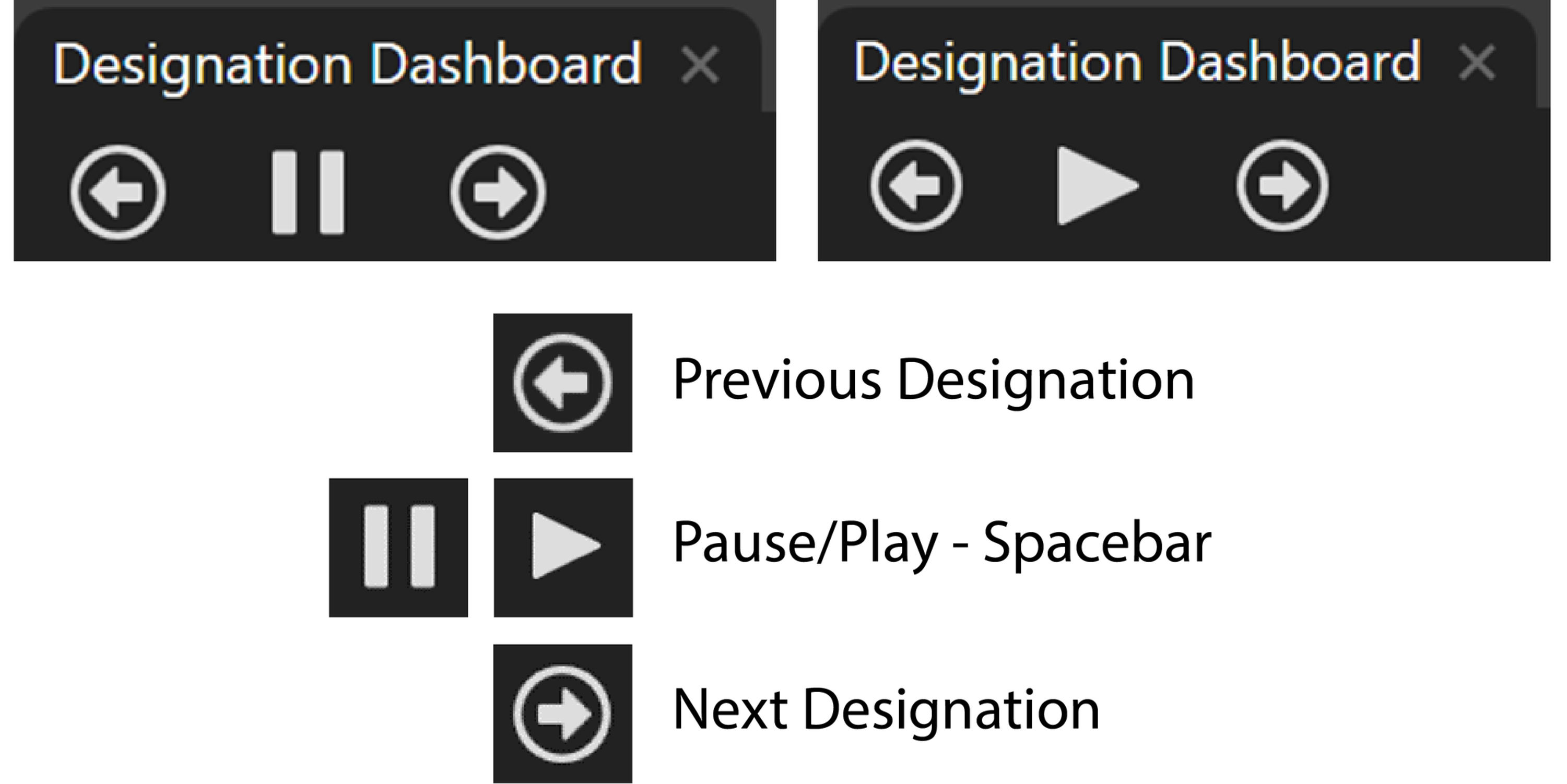
There are navigation buttons on the Designation Dashboard.
Note
If you select an individual designation and not the Designation List, it will start from that designation and either play through to the end of the List, or stop after that single designation or stop point, depending on how you have your auto-advance arrows set.
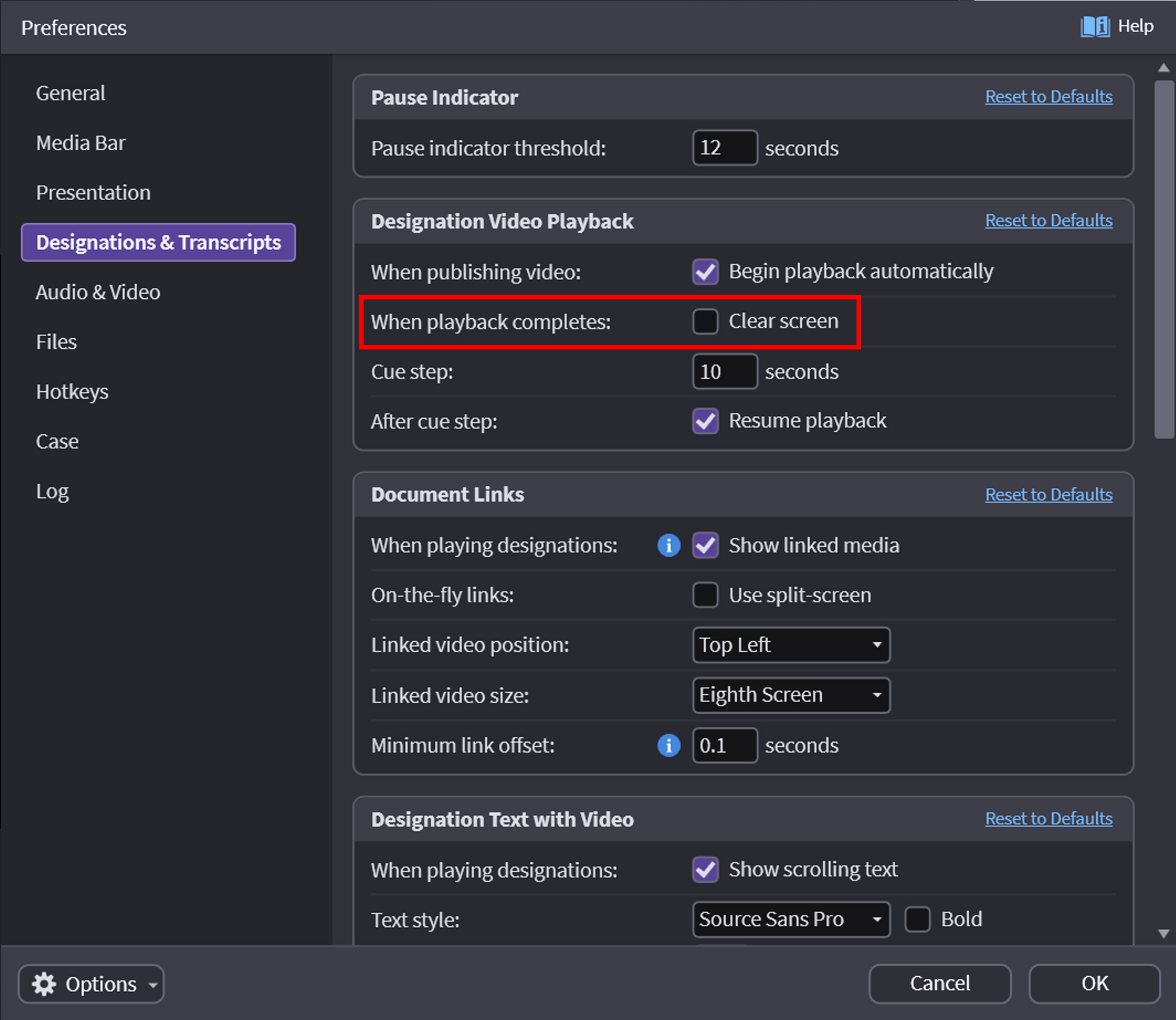
You can also set your designation list to clear the screen upon completion, as seen in Preferences > Designations below.
Playback of designation lists with links are the same as those without links with a few extra tips:
If you forgot to clear a link – Hitting Ctrl + F takes your video back to full screen and clears the doc.
Forget a highlight or a callout – no problem, anything you can do to a document on its own (highlight, callout, zoom) you can do to a document that is linked.
Need to hide the video on-the-fly during playback? Just press Shift + V (press again to bring the video back).
Starting a Designation List Paused
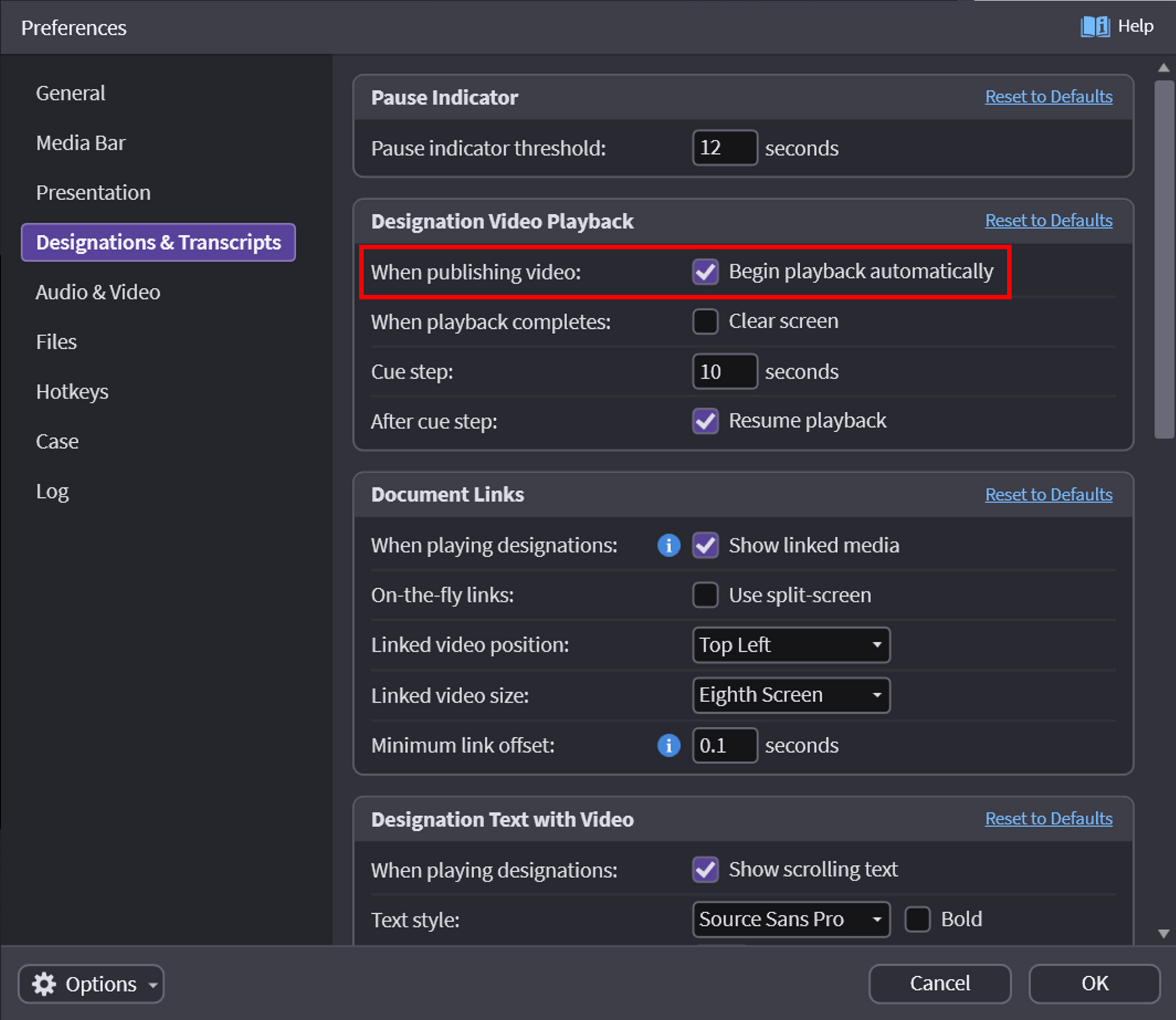
Want your designation lists to start paused instead of playing automatically?
Go to Edit > Preferences > Designations & Transcripts
Uncheck the option for 'Begin playback automatically'
How to Turn Off Links When Playing Designations
(Global Setting)
The judge rules right before it's time to play a designation list and you want to be sure that no linked documents display while playing in Presentation?
Go to Edit > Preferences > Designations & Transcripts
Uncheck the option for Show linked media
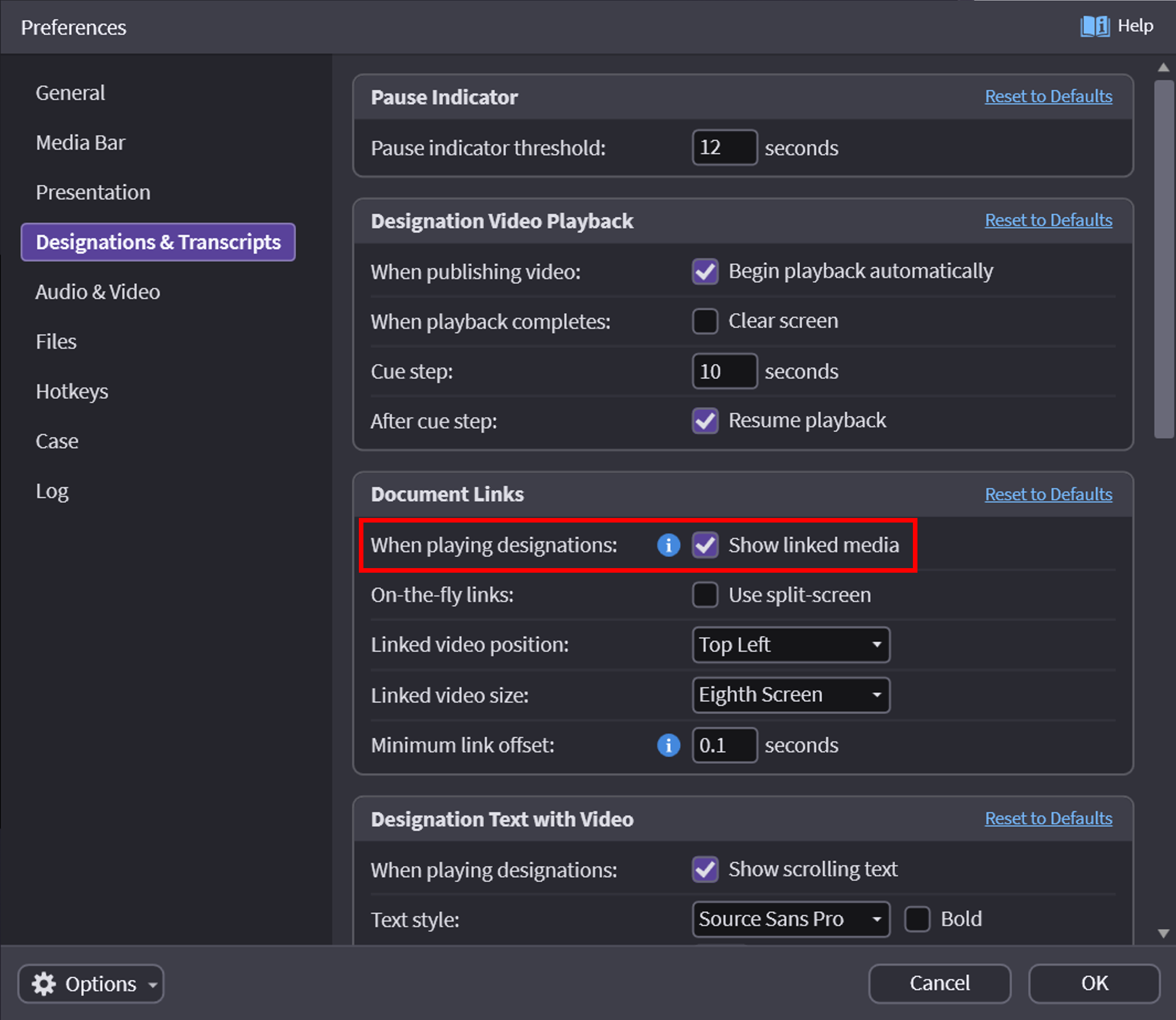
This is a global setting and will impact every designation that is played.