Understanding your Right-Click Menu – Transcripts
A lot of OnCue's features are accessible in right-click menus for various files and work product. If you're ever in doubt about what you can with something–just right-click it.
Here is a list of articles that show all of the right-click menus in the program:
• Documents (including the Viewer pane with a document showing)
• Audiovisuals (including the Viewer pane with an audiovisual file showing)
• Transcripts**(including the Transcript Viewer pane)**
• Designations
• Media Scripts
• Notebooks
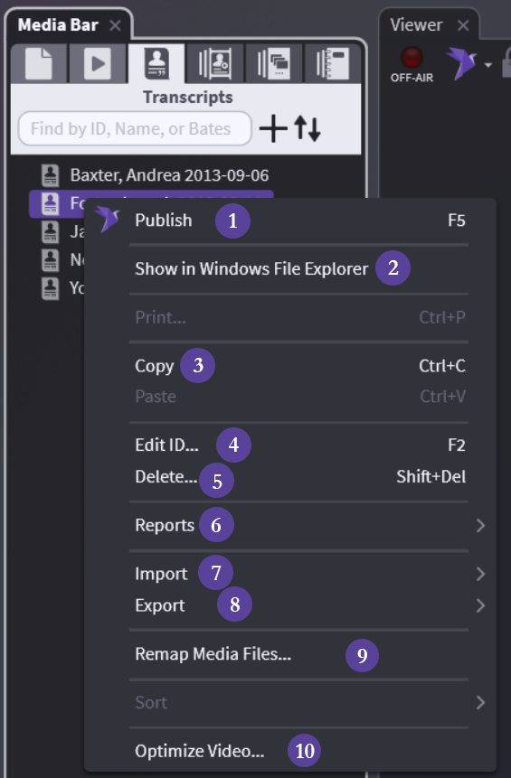
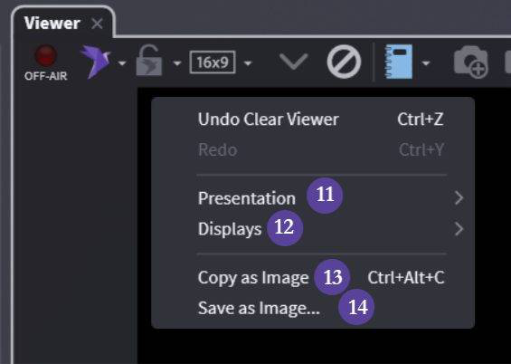
Right-clicking a Transcript and in the Viewer:
(1) Publish — Start deposition playing from the beginning
(2) Show in Windows File Explorer — Exactly as described – opens folder where your file is
(3) Copy — Copy your entire transcript to paste into a Notebook
(4) Edit ID — As described – change the ID (full ID shown)
(5) Delete — Careful – no undo
(6) Reports — Only clean (no highlighting) transcript report
(7) Import — All options for imports available – not tied to transcripts
(8) Export — 2 options: Exhibit List and Transcript to Text
(9) Remap Media Files... — Change file path/Remap your synced video files
(10) Optimize Video... — Optimize and/or change the resolution of your synced video files
(11) Presentation — Choose how you present - deposition will play from the beginning
(12) Displays — Choose your display
(13) Copy as Image — Paste a screenshot into another program
(14) Save as Image... — Saves a screenshot as a file
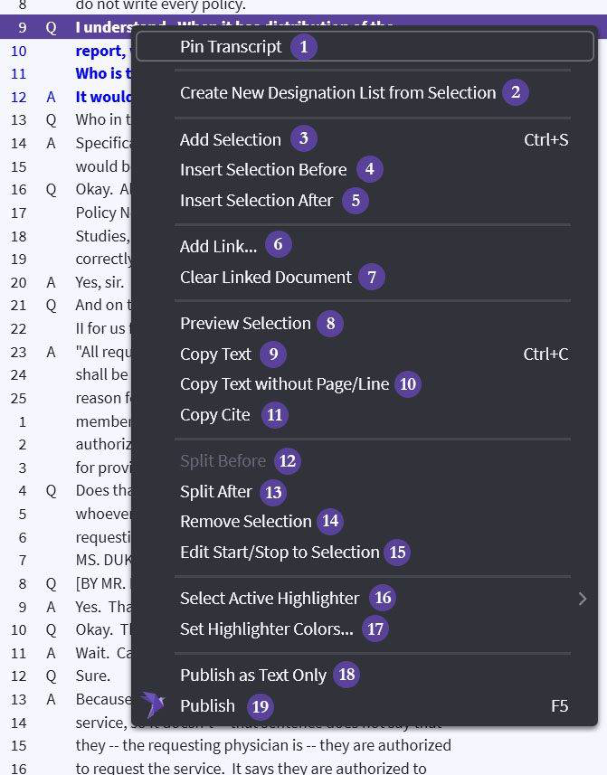
Transcript Viewer:
(1) Pin Transcript — Keeps current transcript in Viewer if you click on another person’s designation
(2) Create New Designation List from Selection — Creates new list from selected portion
(3) Add Selection — Add selected portion to the chosen designation list
(4) Insert Selection Before — Insert selected portion before your chosen designation
(5) Insert Selection After — Insert selected portion after your chosen designation
(6) Add Link — Manually type in doc for selected page and line (must be in designation)
(7) Clear Linked Document — Removes linked document in Presentation, video returns to full screen (must be in designation)
(8) Preview Selection — Plays untuned portion of video selected
(9) Copy Text — As described – copy text to your clipboard
(10) Copy Text without Page/Line — As described – copy just text
(11) Copy Cite — As described – copy page and line
(12) Split Before — Breaks your designation into two separate designations before the selected portion
(13) Split After — Breaks your designation into two separate designations after the selected portion
(14) Remove Selection — Deletes selected portion from a chosen designation
(15) Edit Start/Stop to Selection — Careful – changes page and line you have chosen in list to what you have selected
(16) Select Active Highlighter — As described – sets color for you next selection
(17) Set Highlighter Colors — Set up your colors – See Transcript Highlighters
(18) Publish as Text Only — Show selected portion in Presentation with no video, only scrolling text
(19) Publish — Show selected portion in Presentation