Markdown Examples
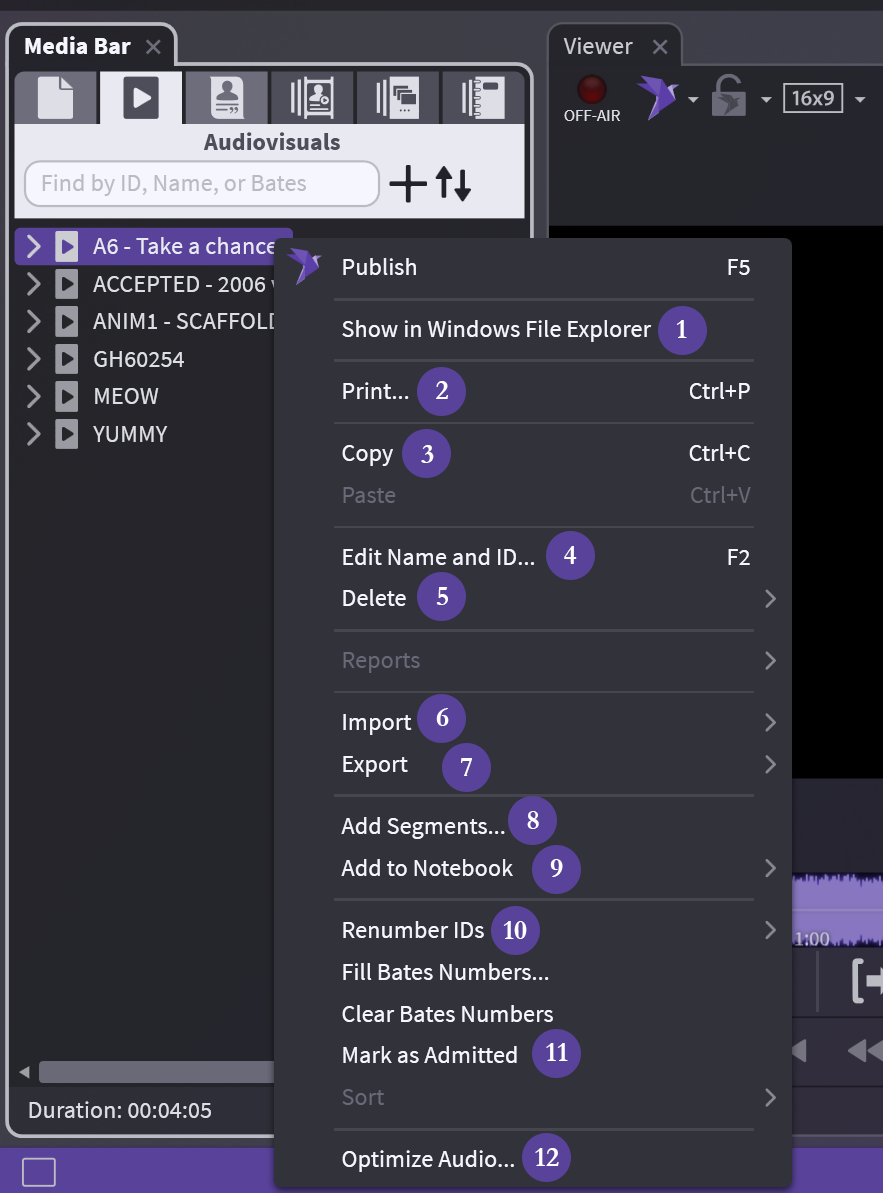
1) Show in Windows File Explorer: Opens folder to file location
2) Print...: Print IDs, barcodes, and other info for this folder on blank page(s)
3) Copy: Copy your entire AV folder and paste into a Notebook or Media Script
4) Edit Name and ID...: Change the name and ID in OnCue only, not underlying file
5) Delete: Careful, 2 options: database only or database and drive
6) Import: All options for import available, not tied to audiovisuals
7) Export: Exhibit list
8) Add Segments...: Add another AV file to existing folder (like adding pages to a non‑PDF document)
9) Add to Notebook: Add to existing (list provided) or create new
10) Renumber IDs: Move AV segments (files) in the folder or delete things, keep your IDs consecutive using this
11) Mark as Admitted: Marks AV file as admitted
12) Optimize Audio...: Having audio or video issues? this optimizes just the file you have selected
ON-AIR / OFF-AIR This is OnCue’s Mirror Mode. Click on the red button to switch between them. If you are ON-AIR, anything showed in the viewer is on your presentation screen. If you click to change to OFF-AIR – the document continues to show on your presentation screen but now if you click on another document, it will not show on the presentation screen. Aspect Ratio This one is simple. OnCue viewer has 4x3 (standard) or 16x9 (widescreen) and should be chosen based on the aspect ratio of the monitor, TV or projector you'll be presenting to. Publish Reverse Publish Stop Presenting Clicking on the Bird sends the document you are looking at to Presentation. Publish On- Air – Same as hitting the On-Air button in the Viewer. If you have a document in Presentation and, for some reason, had to move to another document in the Viewer, this puts what is in Presentation in the Viewer. This closes Presentation completely. Toggle Toolbar Turn your toolbar off and on in Presentation. Any change to the tools in the Viewer will be reflected in Presentation so you probably don’t need to use this. Blank Screen Blank your screen either in Presentation or in On-Air. It works for both.
:::note Note This is a note. :::
:::caution Caution This is a caution. :::
:::tip Tip This is a tip. :::
:::info Info This is info. :::
:::danger Danger This is a danger. :::