Bates Numbers - Filling and Importing
There are two methods to add Bates numbers to an existing database:
- using the Fill Bates Numbers option, and
- importing Bates numbers from a text file.
Fill Bates Numbers
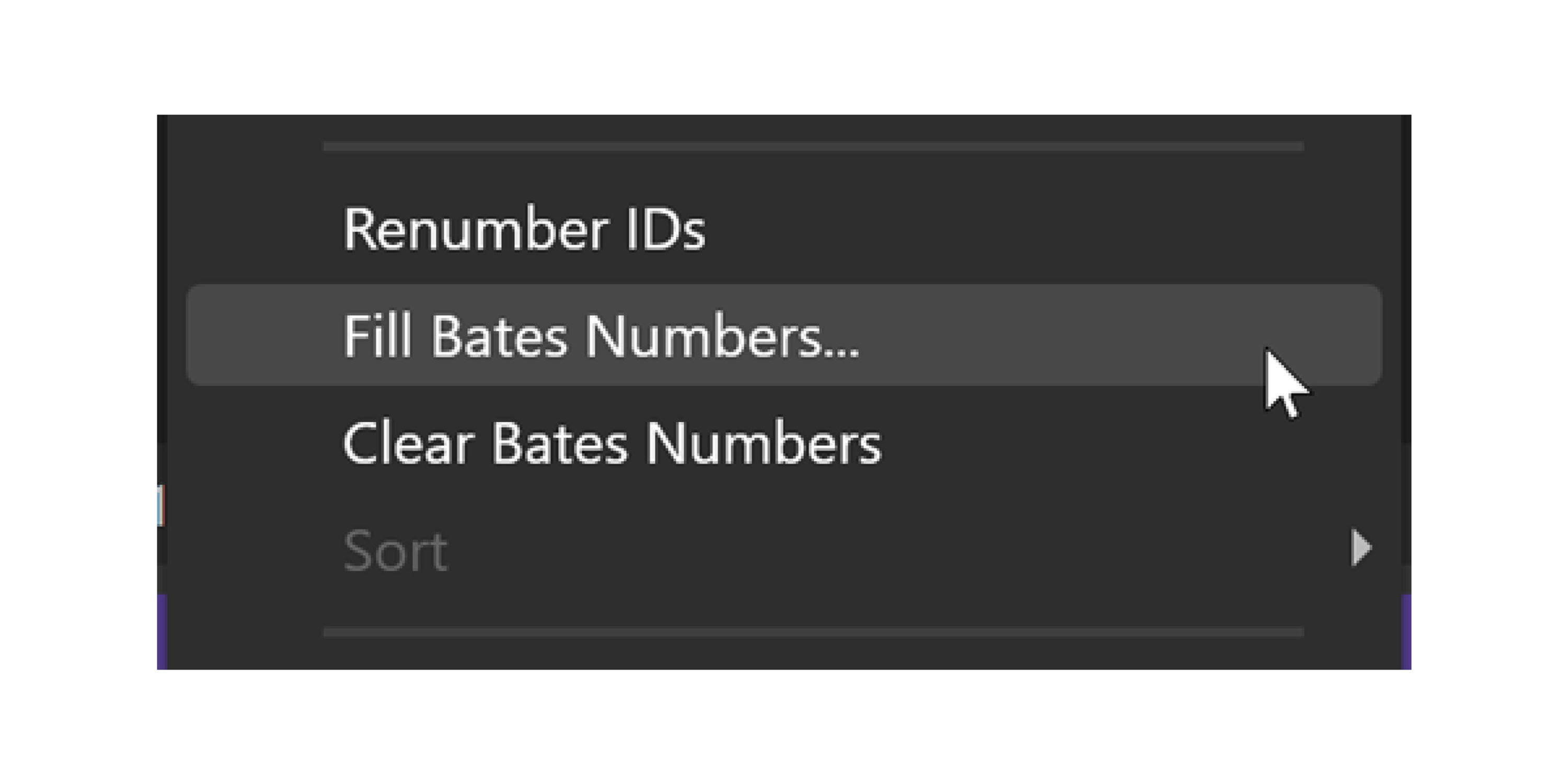
Pick a document to start with and right-click → select Fill Bates.
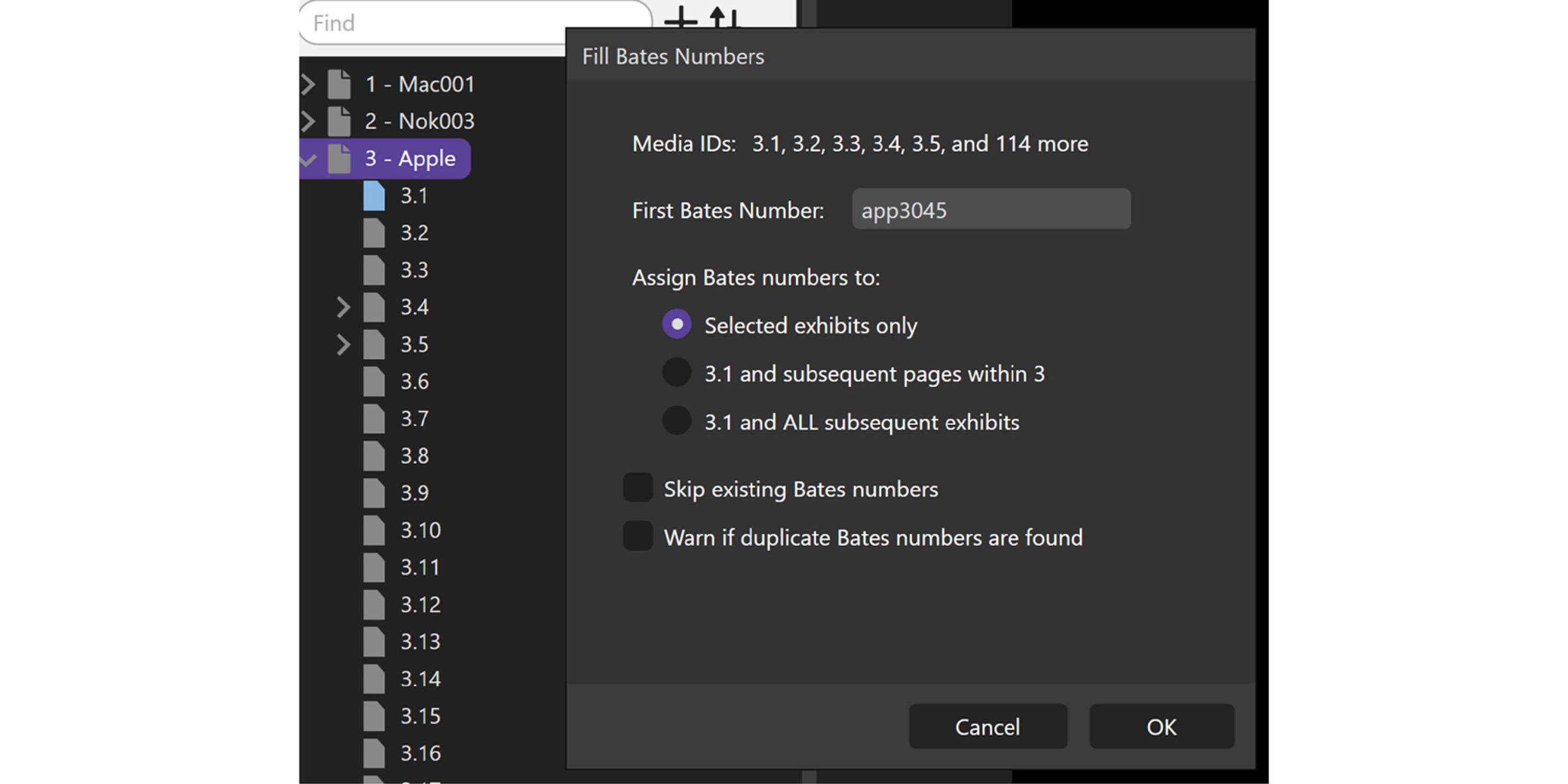
Type in your Bates number and then you have options to select.
Importing Bates Numbers
You can import Bates numbers in either of these ways:
- Under File → Import, select Import Bates Numbers, or
- Right-click in the Documents tab, select Import, and then Import Bates Numbers.
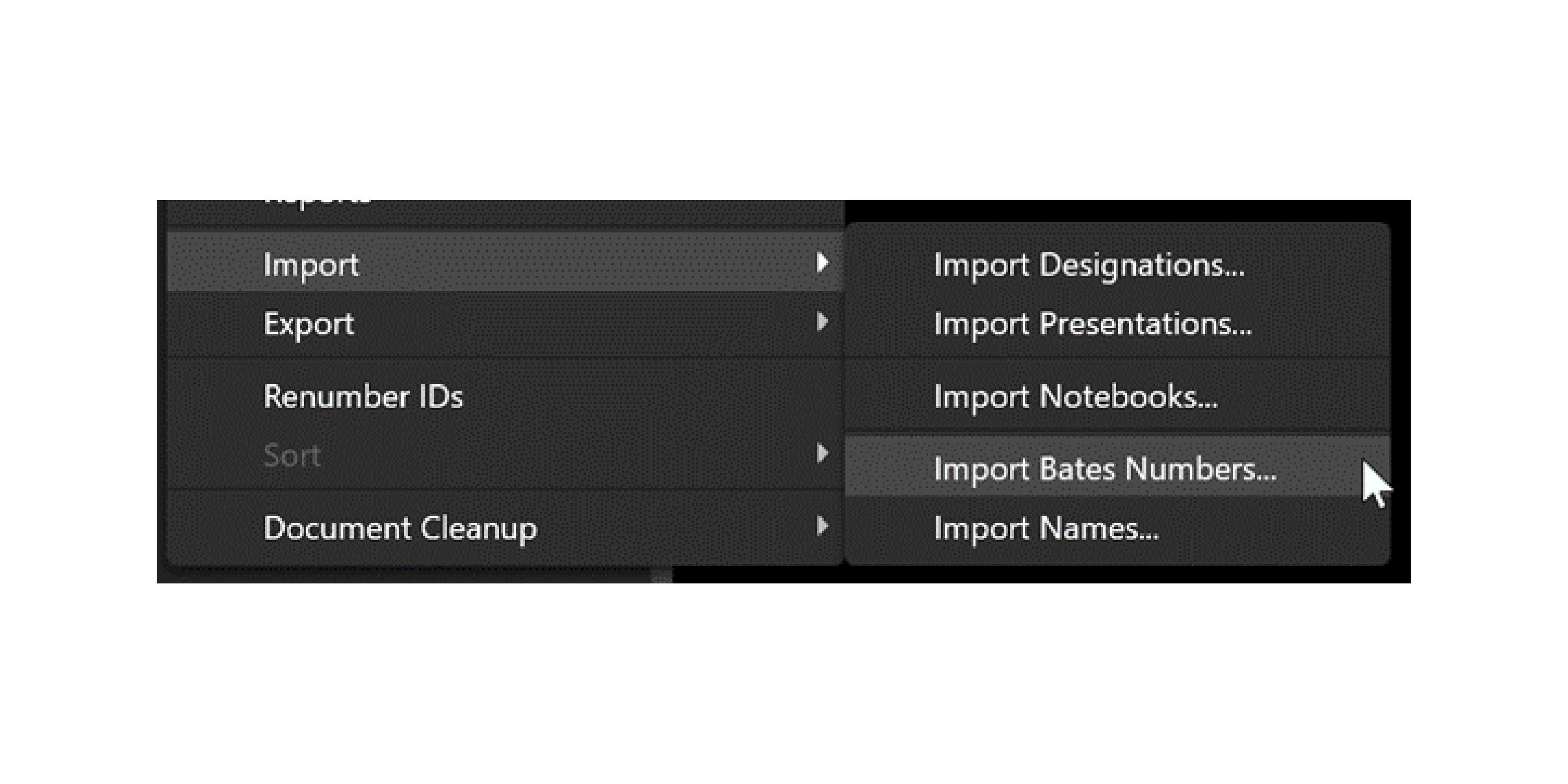
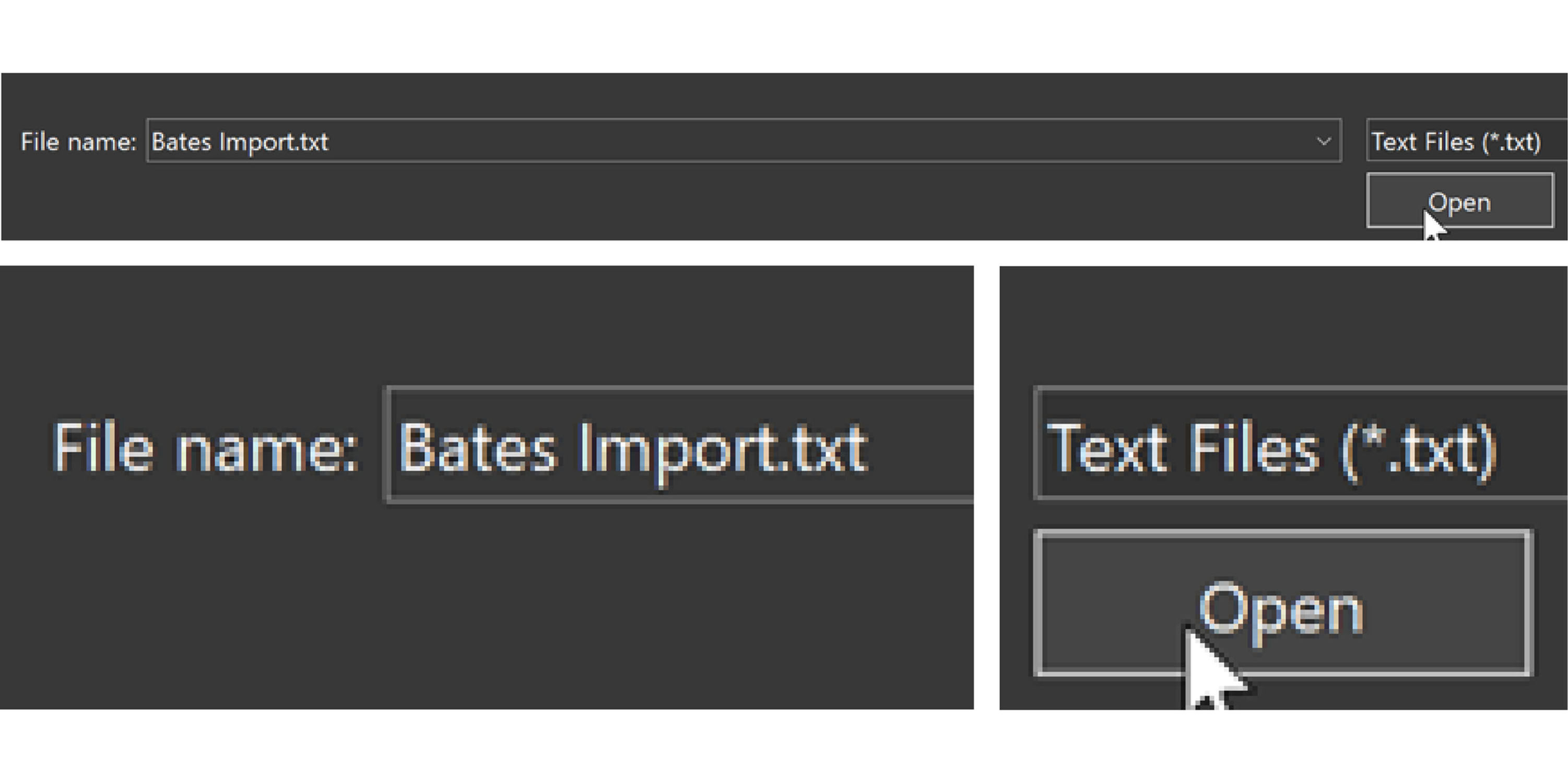
You can import Bates from a text file only—you choose the delimiter. In this example we are using a tab-delimited text file.
You must always have Media ID first, and then Bates Numbers.
There are a couple ways to prepare your files depending on how your Bates work.
1) Bates are consecutive within a document
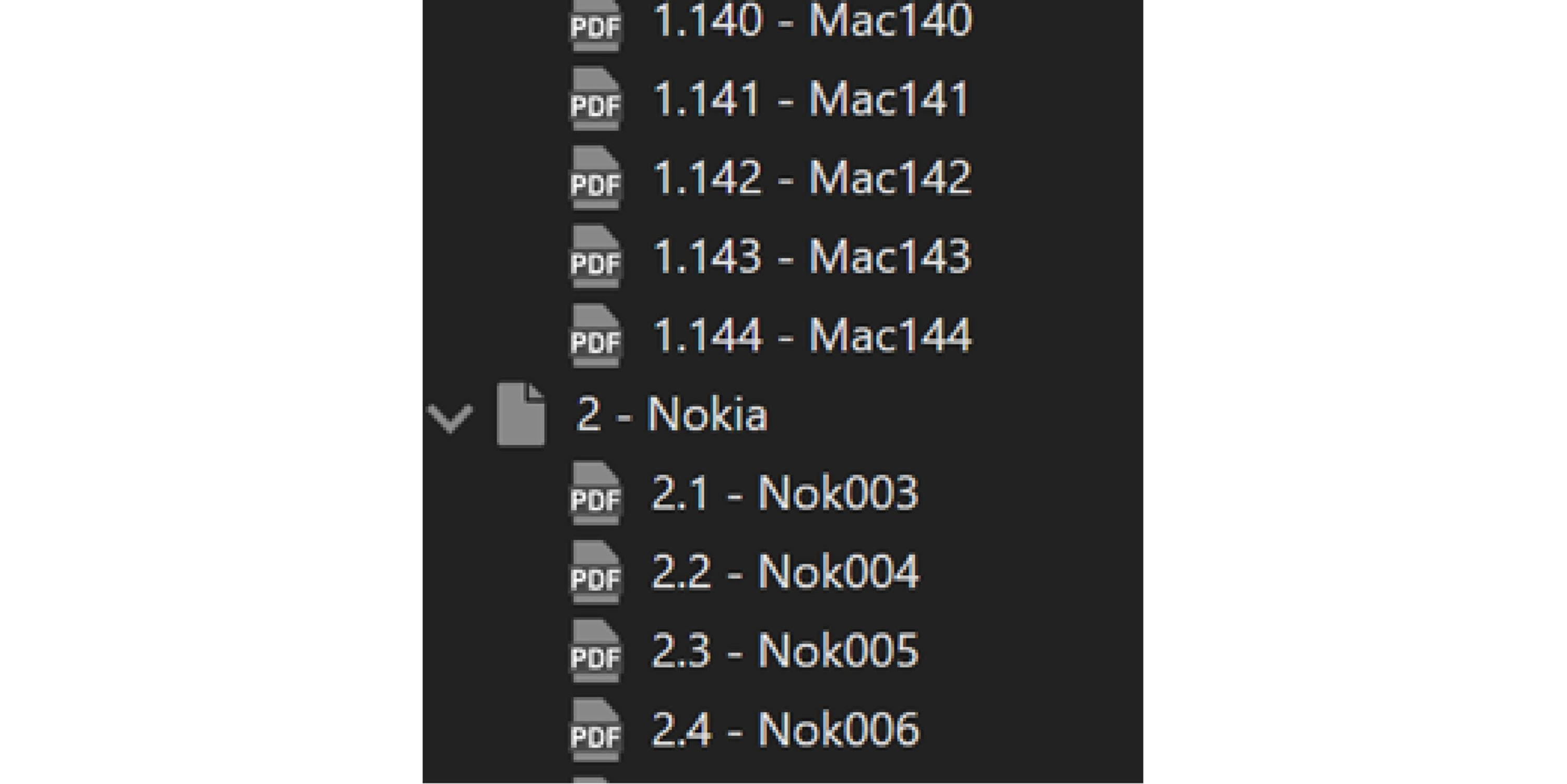
Maybe each doc has its own beginning Bates and are only consecutive in that document.
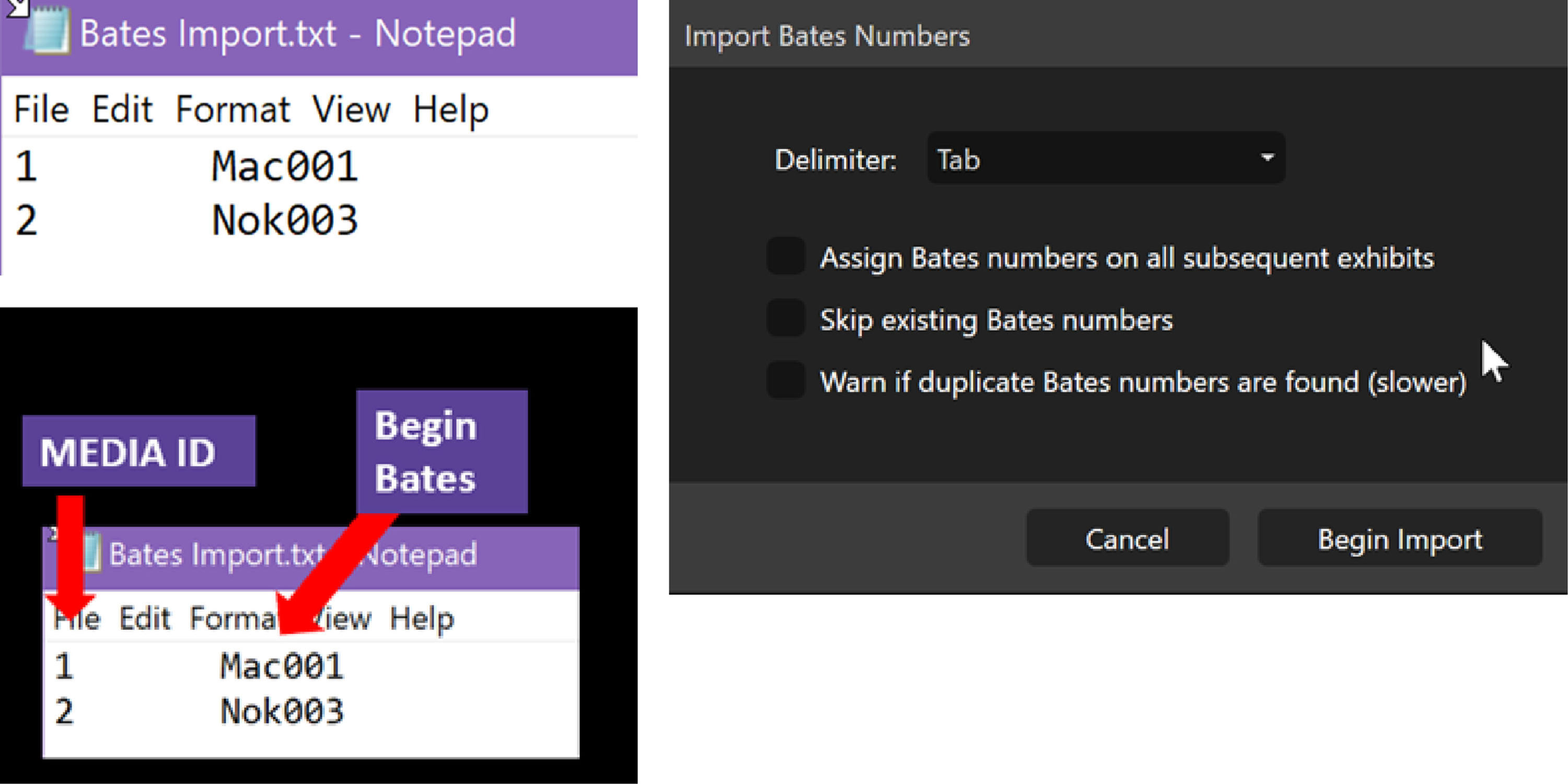
Import with no options checked and here is what you get:
Options
Assign Bates Numbers on all subsequent exhibits
Continues Bates numbering on documents after the last one in your import list (if those exhibits exist in your database).
Skip existing Bates numbers
Skips items that already have Bates numbers. If you don’t check it, you risk overwriting what you have.
Warn if duplicate Bates are found (slower)
This only checks Bates already in your database. It does not warn you if you are trying to name something the same thing within the same import.
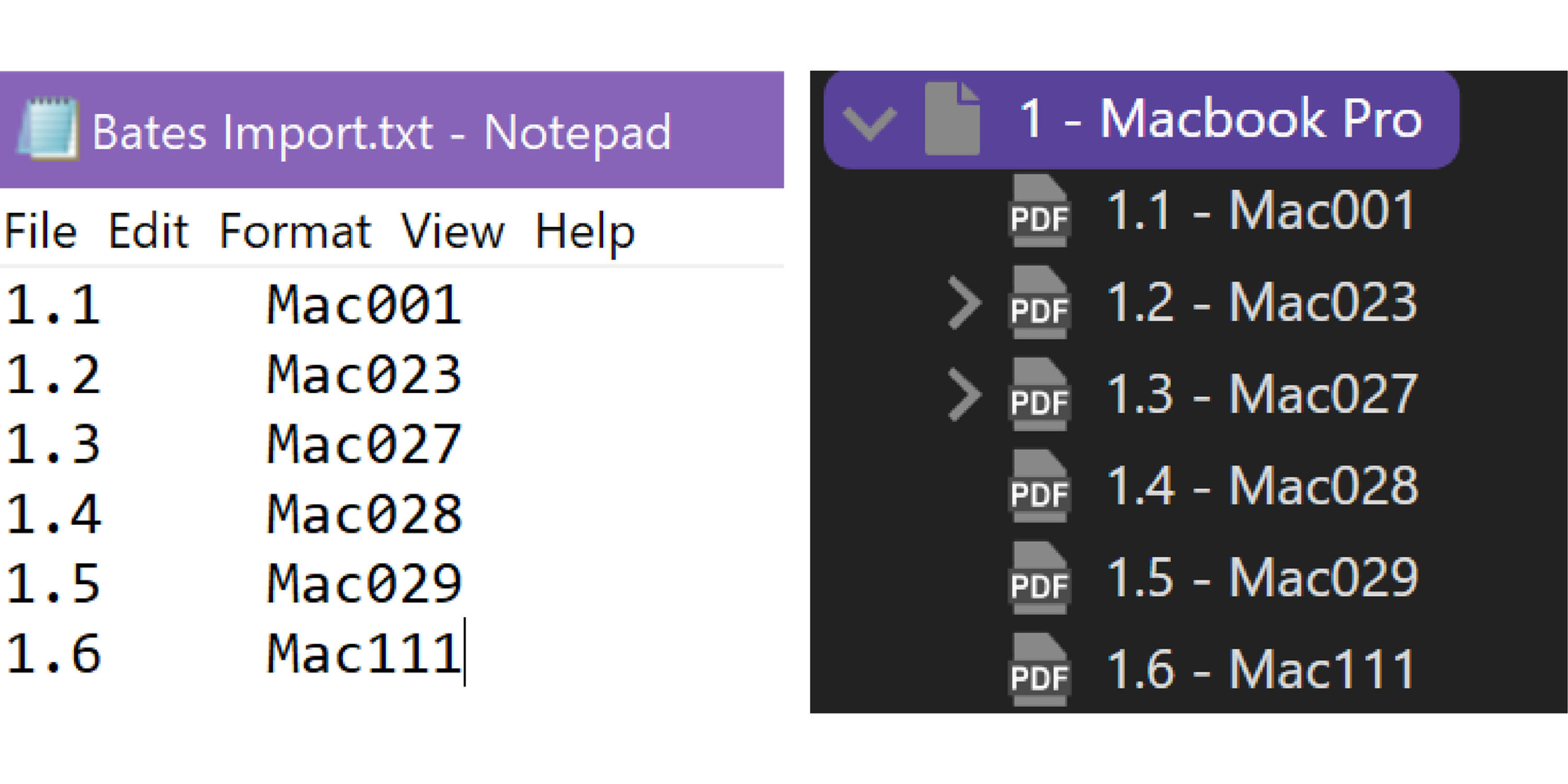
2) Bates are non-consecutive
Maybe each doc has random Bates numbers. You need a file with Media ID first, including page number, then Bates number.
Made a Mistake?
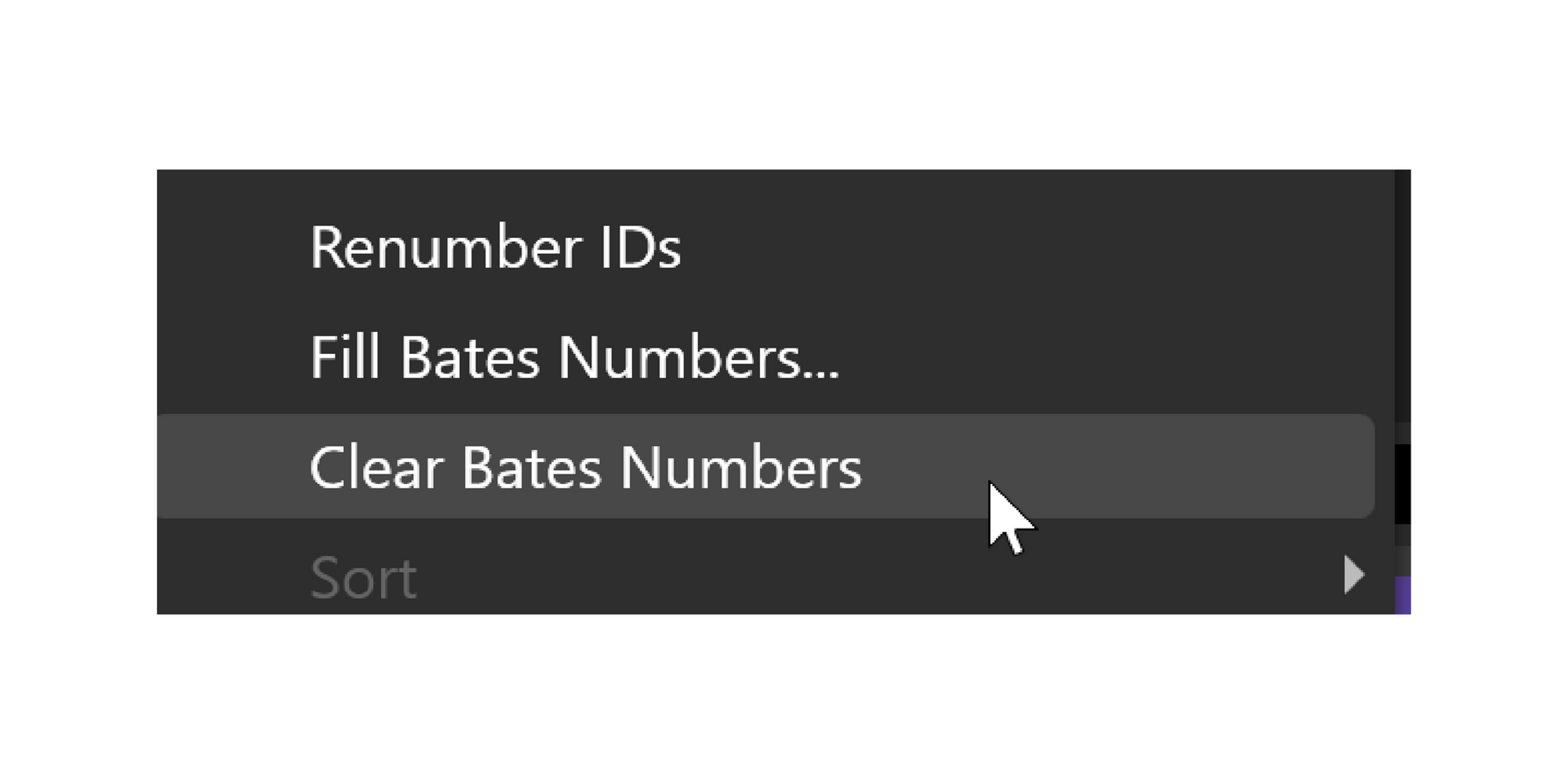
You can clear Bates numbers on a page level or a folder level.
Clearing Bates numbers can affect large sets of media depending on what you select.